Are you about to introduce yourself to recruiters during a civil engineering job interview?
Present your skills, knowledge, and experience with meaningful visuals. Highlight your competence and professionalism.
Explore pre-designed Civil Engineer Interview Presentation. It can help you show the best of yourself in a convincing and modern way.
This Civil Engineer Interview PowerPoint Template is composed of:
- 24 layouts, which allow presenting various aspects of your civil engineering career and job position match — from project case studies to a 30-60-90 day plan.
- 72 outline icons illustrating job-related topics such as general concepts, strategy, personal qualifications, and skills.
- This PowerPoint slide deck is designed in an elegant outline style with icons.
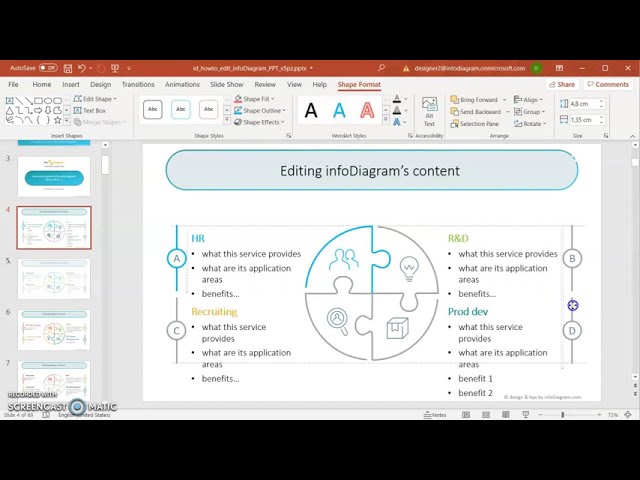
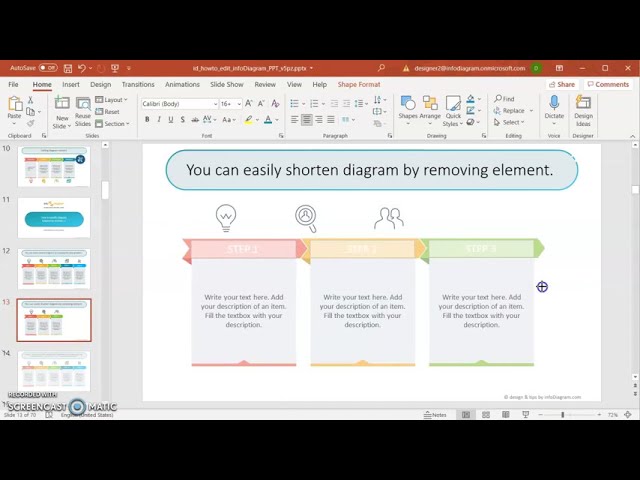
- Instruction on modifying those diagrams using standard PowerPoint editing tools.
- Format: fully editable vector shapes (modify colors of diagrams and icons, resize without quality loss)
Authors of this Job Interview Portfolio:
Design by infoDiagram designer
Contact here
What is a Civil Engineer Interview Presentation?
It's the part of hiring where you introduce yourself to the room. You get a handful of slides to show who you are and why you fit the role.
More employers ask for it now. It's a fast way to see how you think and how you present — things a CV can't show on its own.
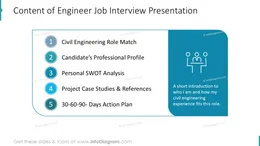
Your presentation covers the role match, your professional profile, your work experience, project case studies, references, and a 30-60-90 day plan for the new job.
Want practical tips? Read how to prepare for a job presentation in this blog article.
Why use presentation layouts for your self-introduction?
This is your chance to show what you bring. As a civil engineer you have plenty to prove — the projects you've delivered, your technical judgment, how you run a site. A wall of bullet points won't carry that. I've watched strong engineers lose a room that way.
Good visuals help. They make your points easy to grasp, and easy to remember. They also show you came prepared.
My suggestion: don't build slides from scratch the night before. Start from ready layouts, drop in your content, and tell your story with visuals instead of text.
The deck also has a short section on editing the graphics. You control everything — text, sizes, colors, strokes. No design skills needed.
Where can you use these PowerPoint interview layouts?
Ready layouts keep your slides organized and put the important things up front. You can:
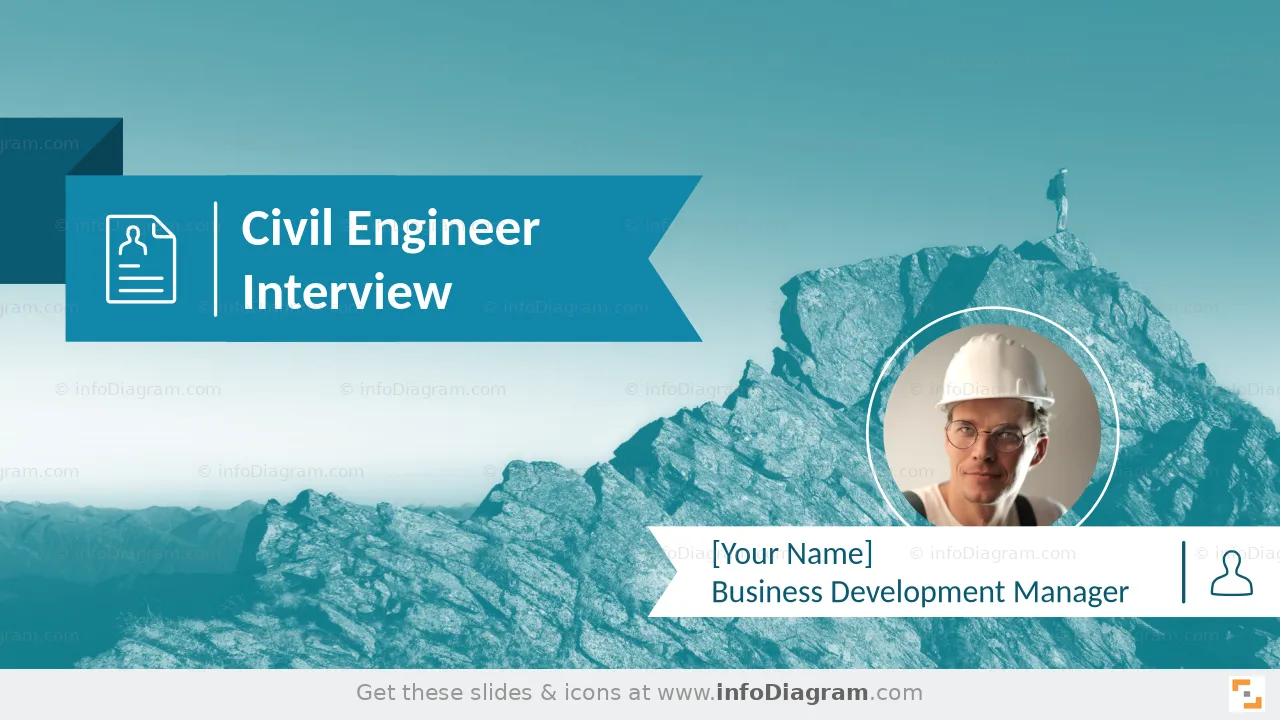
- open with a clean title slide
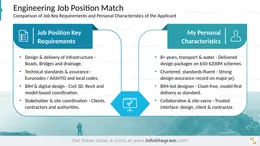
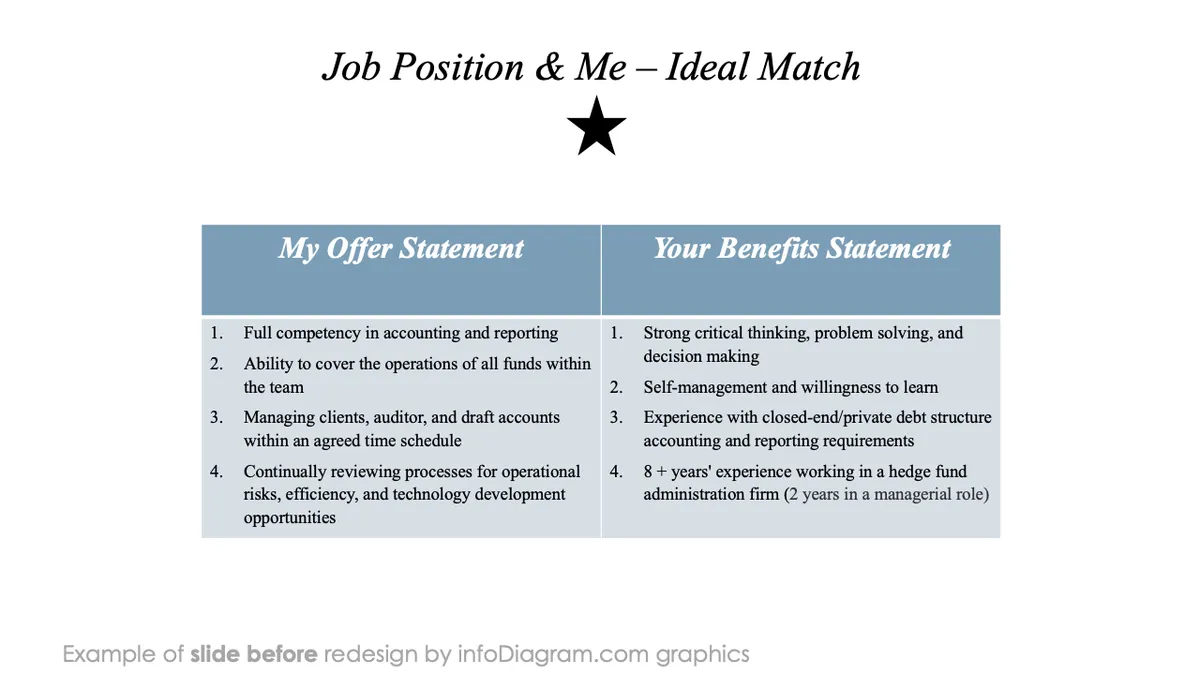
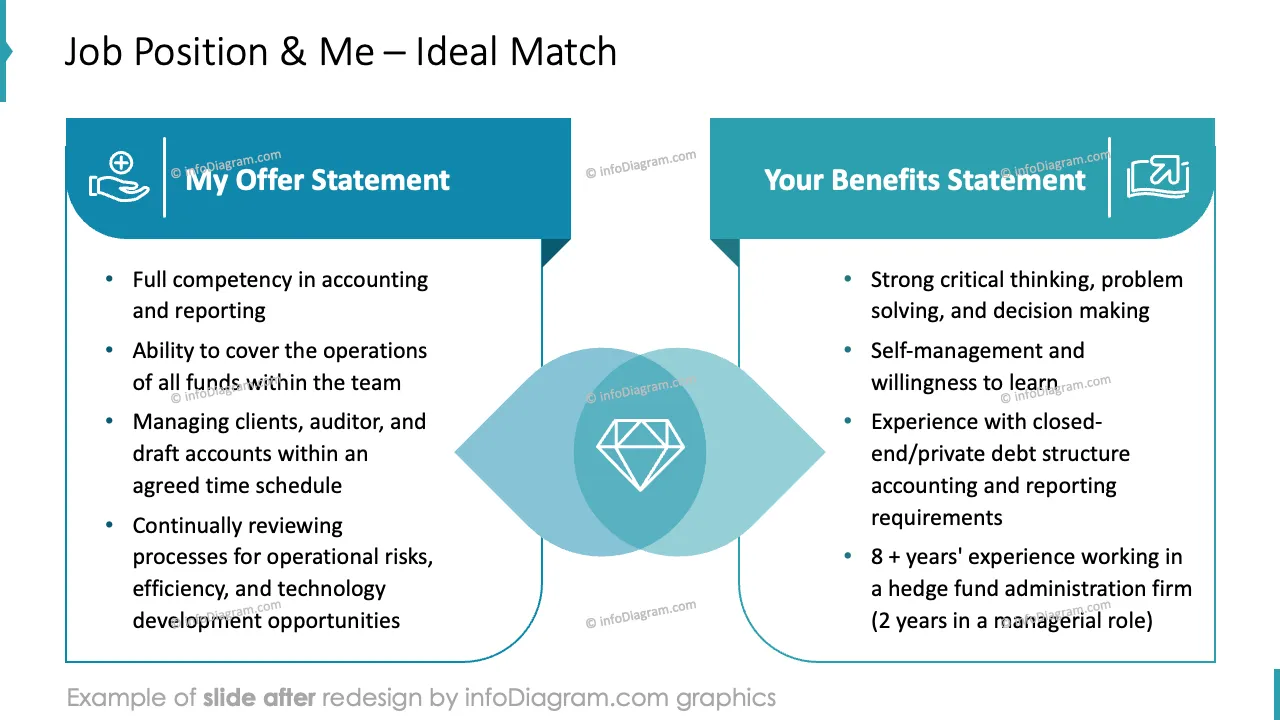
- match the role's key requirements against your own strengths
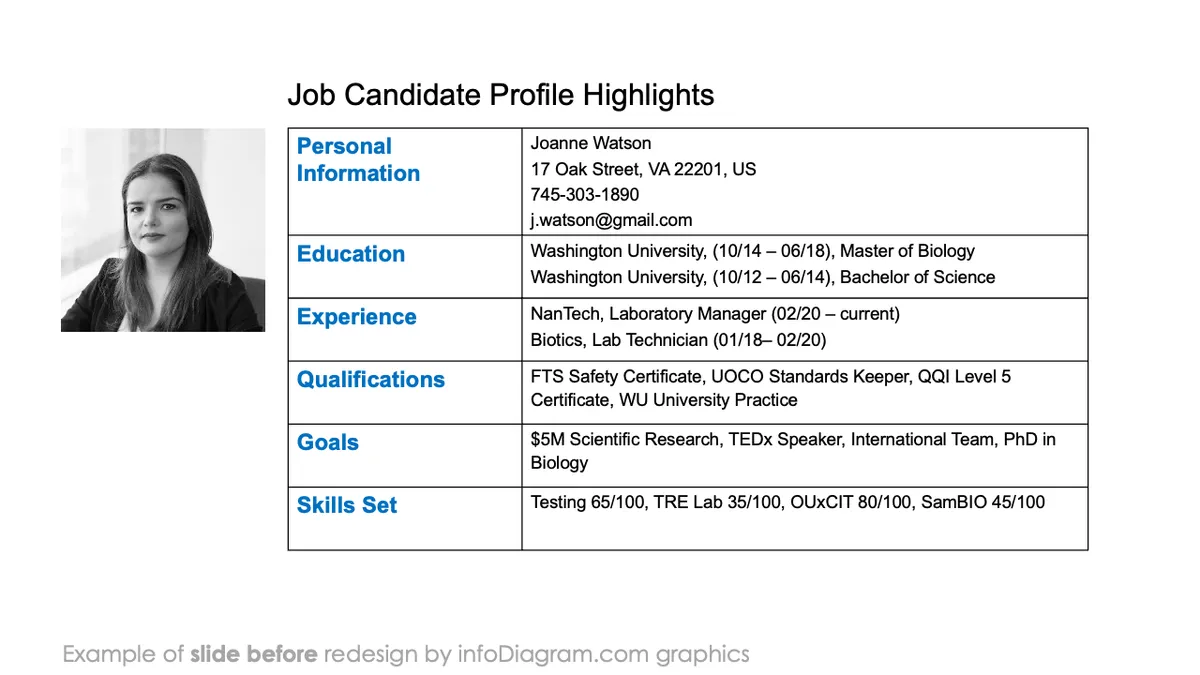
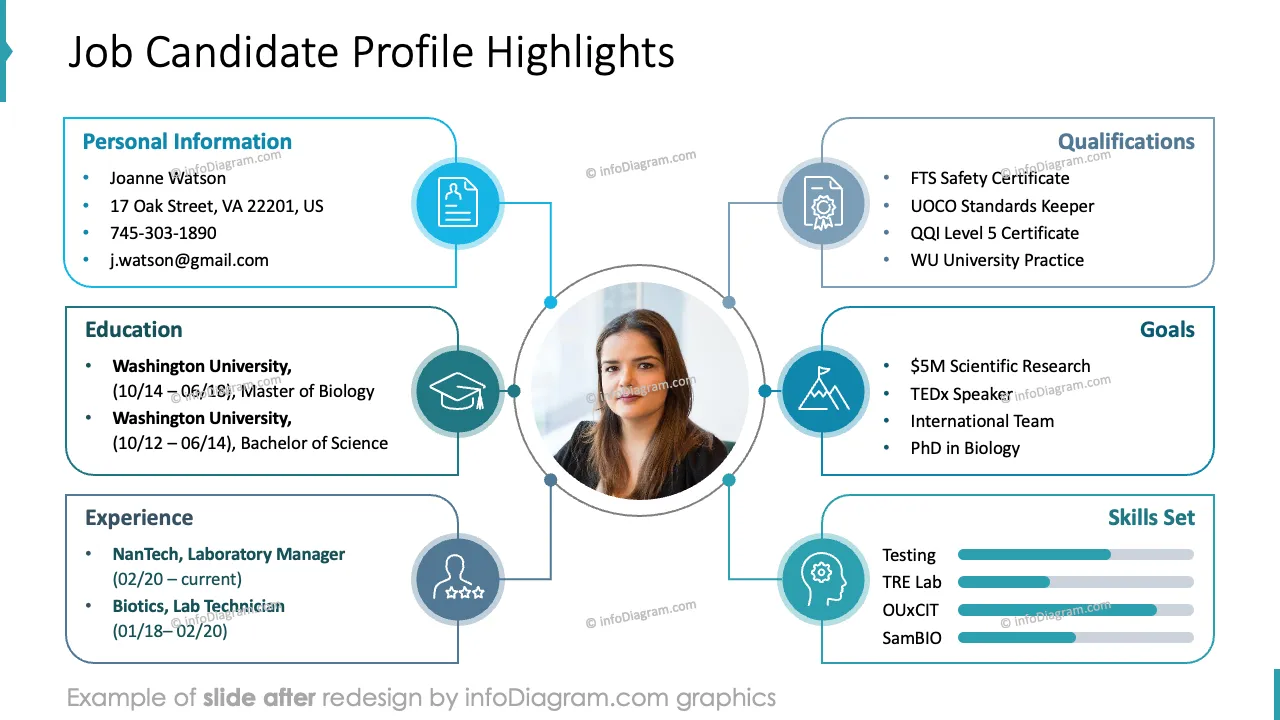
- sum up your profile on one slide: education, experience, qualifications, goals, and skills
- lay out your career on a timeline, with a short note on each role
- put your best numbers up front — projects delivered, budget saved, safety record
- map your strengths and the opportunities they open with a simple SWOT
- show your main career goals, so you read as focused and driven
- highlight the achievements you're proudest of
- present your top 4 projects — the area, your role, and what you learned
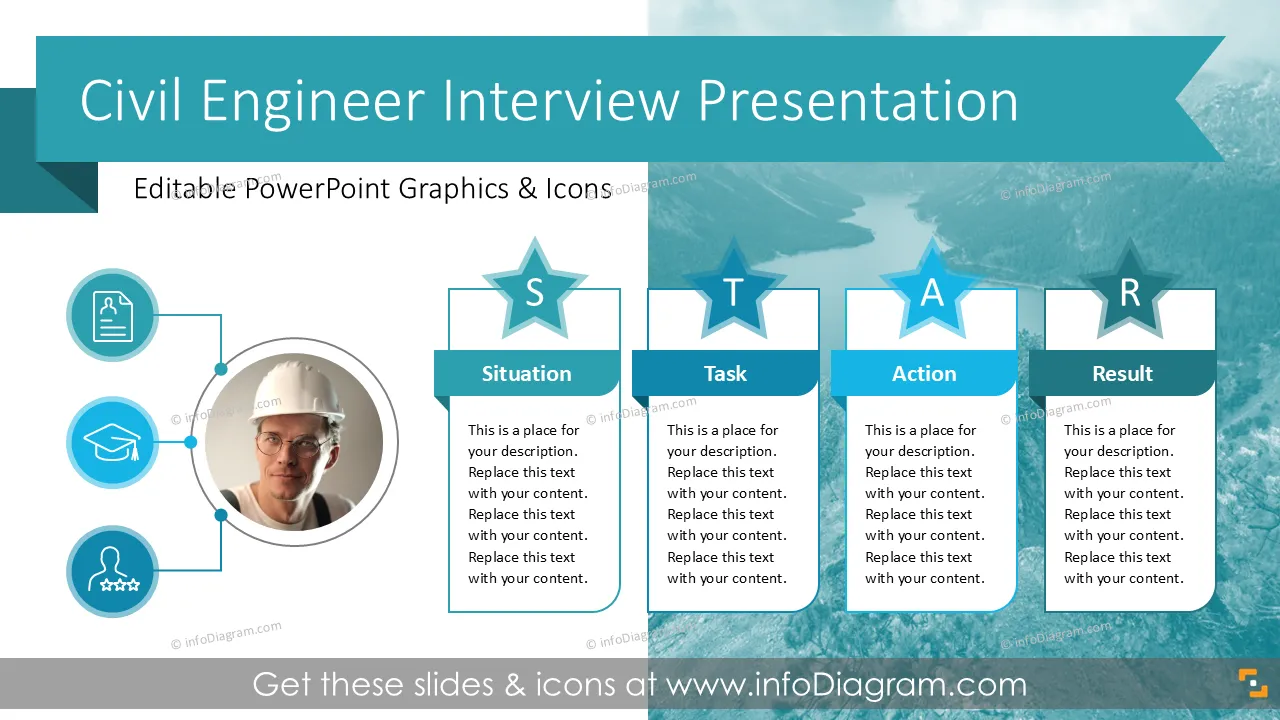
- tell your best project story with the STAR method: situation, task, action, result
- add references from past managers, clients, and peers to back up your credibility
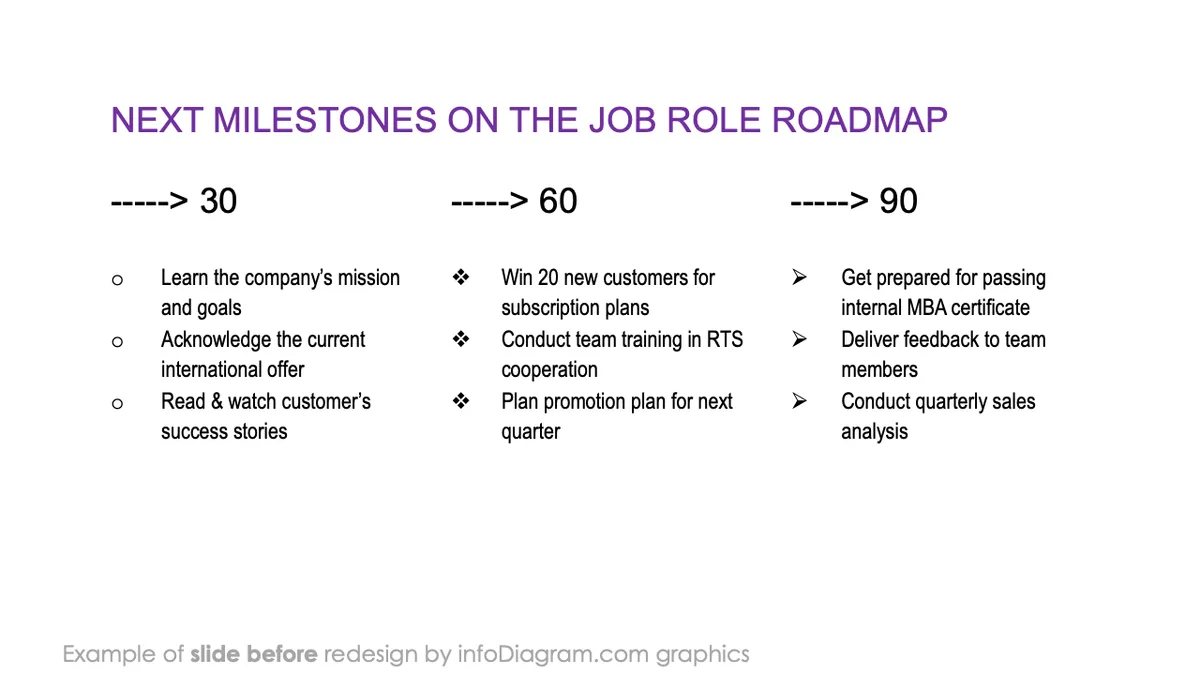
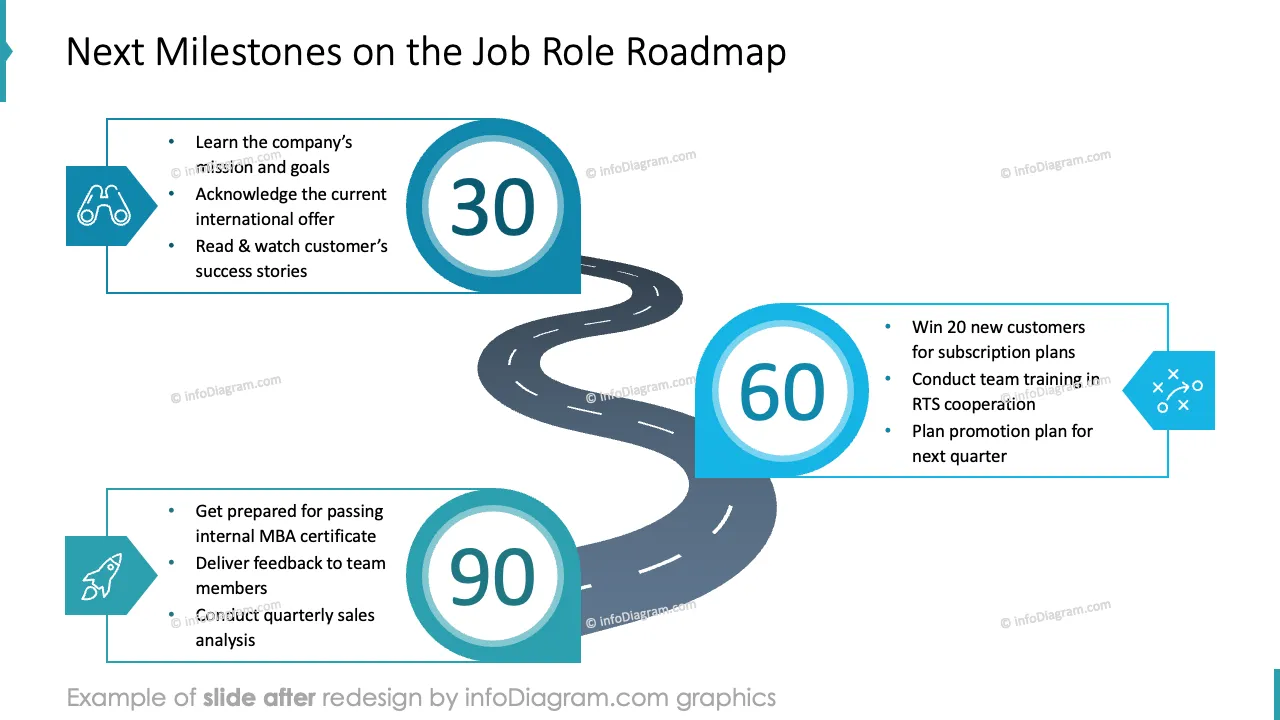
- plan your first 30, 60, and 90 days in the role
- close with what you offer, side by side with what the employer offers
Try using those PowerPoint graphics to present yourself as a best candidate in an elegant way.
All graphics are editable so that you can modify shapes, colors, strokes, images, and text. Also, you can extend the collection further with more PPT symbols (see Related Diagrams section).
Fully editable in PowerPoint set of vector shapes fully editable with built-in PowerPoint tools, including
- replacing icons
- changing the filling and outline color of all shapes and icons
- modifying shapes and sizes, rotating, flipping the objects, moving shapes behind or on top of texts or charts