
Reviews
Ihre Grafiken verleihen meinen Präsentationen eine nette Note, und ich habe sie kürzlich für eines meiner All-Hands-Meetings verwendet. Ihre Toolbox verleiht meinen Folien Professionalität, anstatt Standard-Clipart zu verwenden.
Ich brauchte einen neuen Blick auf einige meiner Folien. Ich habe versucht, einen Weg zu finden, einen Pinselschlag-Effekt zu erzielen, um zu unterstreichen, hervorzuheben, Farbe hinzuzufügen, und die handgeschriebenen Markierungen waren genau das Richtige. Sehr einfach zu bedienen, leicht in der Größe zu ändern, die Farbe zu ändern. Es war eine erschwingliche, perfekte Lösung und ich empfehle sie gerne weiter.
Die klare, saubere Optik der Grafiken und die Tatsache, dass ich die Farben leicht bearbeiten und an die Vorlage anpassen konnte, war mein Hauptgrund für den Kauf.
Description
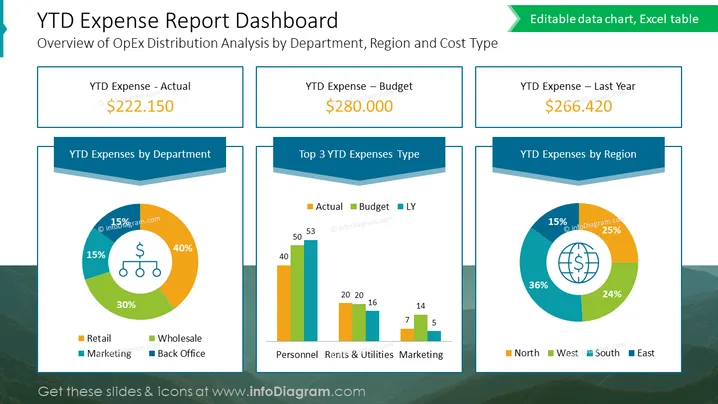
YTD Expense Report Dashboard
Slide Content
The slide presents a "YTD Expense Report Dashboard" with an overview of operational expenditure distribution analyzed by department, region, and cost type. It features three key financial metrics: "YTD Expense - Actual," "YTD Expense – Budget," and "YTD Expense – Last Year," with corresponding figures that suggest a financial assessment or comparison scenario. Additionally, there are three pie charts depicting "YTD Expenses by Department," "Top 3 YTD Expenses Type," and "YTD Expenses by Region," each offering a visual breakdown of expenses.
Graphical Look
- The slide background is white with a prominent header in green and blue tones, giving it a corporate feel.
- Four text boxes are present with title bars in a folded ribbon style in blue, each containing financial figures prominently displayed in large, bold font.
- Three pie charts enrich the slide: one breaking down expenses by department, another by expense type with an accompanying bar chart, and the last by region, all featuring a variety of colors to differentiate the segments.
- Dollar icons are strategically positioned within the charts to emphasize the financial nature of the content.
- Chart legends are provided adjacent to the diagrams for clarity.
The overall visual look of the slide is clean and corporate, with a structured layout that compartmentalizes information for quick and efficient data uptake. The use of colors and shapes is thoughtfully done to distinguish different data sets while maintaining a cohesive design.
Use Cases
- Presenting financial results and budget comparisons in business meetings to illustrate fiscal health or operational performance.
- Reporting year-to-date analytics to management teams or board members to inform decision-making.
- Visualizing expense distributions to stakeholders during quarterly or annual company reviews to communicate financial transparency.
- Incorporating into financial dashboards within investor presentations to showcase economic allocation and trends.
How to Edit
How to edit text & colors

How to expand / shorten diagram

How to Replace Icons in infoDiagram PPT


