

Your graphics add a nice touch to my presentations and I recently used them for one of my all-hands meetings. Your toolbox adds professionalism to my slides. Instead of using standard clipart.
Claude Jones, Director of Engineer, @Walmartlabs, USA

Your graphics add a nice touch to my presentations and I recently used them for one of my all-hands meetings. Your toolbox adds professionalism to my slides. Instead of using standard clipart.
Claude Jones, Director of Engineer, @Walmartlabs, USA
I needed a fresh look at some of my slides. I've tried to find a way to create a paintbrush effect, to underline, accentuate, add some color and the handwritten markers were just the things. Very easy to use, easy to size, change the color. It was an affordable, perfect solution and I'm happy to recommend it.
Anonymous, US
The crisp, clean look of the graphics, and the fact that it allowed me to easily edit and change the colors to match the template was my main reason for purchasing them.
Brandie Jenkins, E-learning Developer, USA
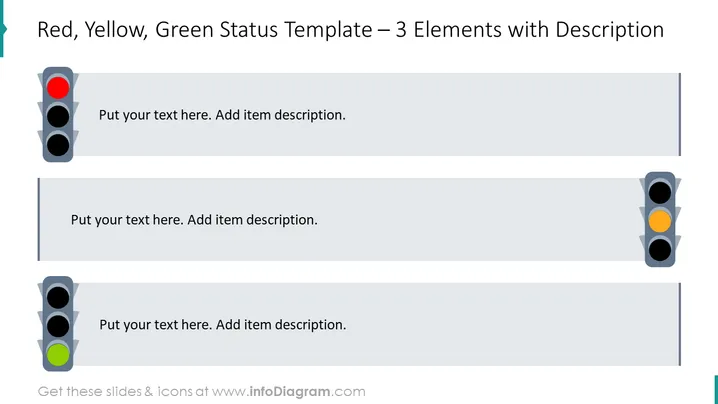
The slide is a visual tool for categorizing and describing the status of three separate elements or stages in a process. It uses the familiar traffic light system as a metaphor, with red indicating a halt or issue, yellow suggesting caution or a need for decision-making, and green signifying all-clear or completion. Each traffic light corresponds to a space for text to elaborate on the specific condition or action required for that stage.
The overall design is minimalistic and functional, using color coding effectively to communicate status at a glance. It provides a clear and structured format for conveying progress or issues in a visual manner.
This slide would be useful in business presentations for project management, status reporting, or process tracking. It's particularly suited to visually communicate the progress of different tasks or issues within a project or to highlight areas that need attention during team meetings or reviews.



