
Reviews
Ihre Grafiken verleihen meinen Präsentationen eine nette Note, und ich habe sie kürzlich für eines meiner All-Hands-Meetings verwendet. Ihre Toolbox verleiht meinen Folien Professionalität, anstatt Standard-Clipart zu verwenden.
Ich brauchte einen neuen Blick auf einige meiner Folien. Ich habe versucht, einen Weg zu finden, einen Pinselschlag-Effekt zu erzielen, um zu unterstreichen, hervorzuheben, Farbe hinzuzufügen, und die handgeschriebenen Markierungen waren genau das Richtige. Sehr einfach zu bedienen, leicht in der Größe zu ändern, die Farbe zu ändern. Es war eine erschwingliche, perfekte Lösung und ich empfehle sie gerne weiter.
Die klare, saubere Optik der Grafiken und die Tatsache, dass ich die Farben leicht bearbeiten und an die Vorlage anpassen konnte, war mein Hauptgrund für den Kauf.
Description
Whiteboard Slide: Pros and Cons Evaluation
Slide Content
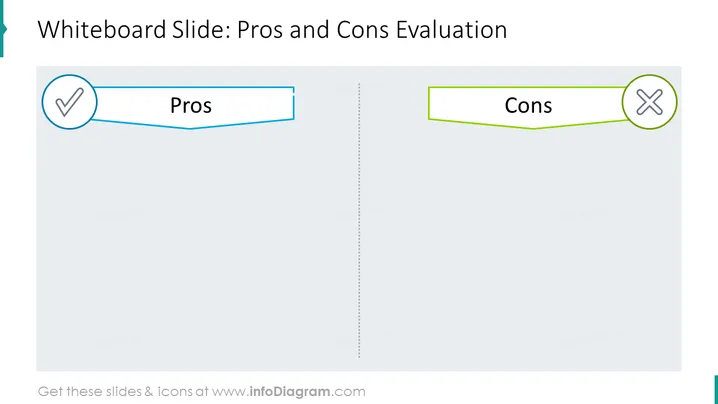
The PowerPoint slide is designed to help evaluate the pros and cons of a particular topic or decision. On the left side, under the "Pros" column, positive aspects would be listed, often signifying benefits, advantages, or favorable outcomes associated with the subject at hand. The right side is dedicated to the "Cons," outlining negative aspects such as drawbacks, disadvantages, or risks. This type of comparison allows for a balanced view when considering different aspects of a decision or strategy.
Graphical Look
- Two distinct text boxes, one labeled "Pros" and the other "Cons," are central to the slide, each placed within its half of the slide divided by a dotted vertical line.
- The "Pros" textbox is accompanied by a checkmark icon, encapsulated in a circle and highlighted with a light blue outline, matching the textbox border color.
- The "Cons" textbox is paired with an "X" mark icon, also encapsulated in a circle and highlighted with a light green outline, complementing the textbox border color.
- The dotted vertical line creates a symmetrical division, emphasizing the balance and contrast between the two opposing lists.
- Both text boxes have a banner-like appearance, simulating a flowing ribbon, adding depth and movement to the slide’s design.
The overall look is clean and balanced, with a simple color scheme that visually differentiates between the 'pros' and 'cons' sections. The checkmark and "X" icons serve as universally recognized symbols for positive and negative attributes respectively.
Use Cases
- During a strategy meeting to discuss the advantages and disadvantages of a new business initiative.
- In a project review session to summarize the benefits and risks of pursuing a particular project path.
- When presenting a product or service comparison to highlight the strengths and weaknesses relative to competitors.
- During decision-making workshops or seminars to facilitate discussion and evaluation of different options or proposals.
How to Edit
How to edit text & colors

How to expand / shorten diagram

How to Replace Icons in infoDiagram PPT


