
Reviews
Sus gráficos añaden un toque agradable a mis presentaciones y recientemente los usé para una de mis reuniones generales. Su conjunto de herramientas añade profesionalismo a mis diapositivas. En lugar de usar imágenes prediseñadas estándar.
Necesitaba un aspecto fresco para algunas de mis diapositivas. Había intentado encontrar una forma de crear un efecto de pincel, de subrayar, acentuar, añadir algo de color y los marcadores escritos a mano fueron justo lo que necesitaba. Muy fácil de usar, fácil de ajustar el tamaño, cambiar el color. Fue una solución asequible y perfecta, y estoy feliz de recomendarla.
El aspecto nítido y limpio de los gráficos, y el hecho de que me permitiera editar y cambiar fácilmente los colores para que coincidieran con la plantilla fue mi principal razón para comprarlos.
Description
Whiteboard Framework: Comparing Two Options
Slide Content
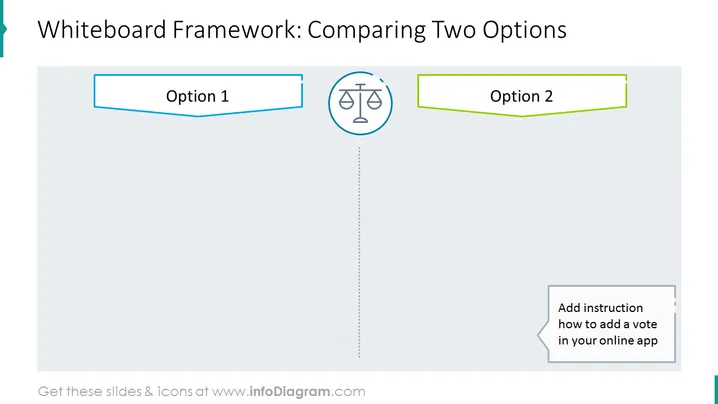
The slide is a framework for comparing two options, visually represented with labeled boxes as "Option 1" and "Option 2." Between these options is a scale icon, suggesting a weighing of options. Below, there is a text box with "Add instruction how to add a vote in your online app," instructing users on integrating voting into an application. This framework facilitates a clear comparison, suggesting the importance of balance and decision-making in the process.
Graphical Look
- There are two distinct horizontally elongated rectangular shapes at the top of the slide, each corresponding to an option, one on the left and another on the right.
- The rectangles have different colored outlines, one in blue and the other in green, signifying separate entities or choices.
- Centered in between these rectangles is a round icon depicting a balance scale.
- A dashed vertical line runs from the scale icon downwards, dividing the slide into two symmetric halves.
- At the bottom of this line, there is a grey text box that includes instructions on adding a vote in an online application.
- The slide has a clean, minimalist design with a lot of white space.
The overall look of the slide is professional and simplistic, with a clear emphasis on the comparison between two choices. The balance scale icon reinforces the theme of weighing options against each other.
Use Cases
- Presenting pros and cons during a business meeting to decide on strategic decisions.
- Visualizing the comparison of products or features in a marketing presentation.
- Illustrating options in a project management discussion to help stakeholders make informed decisions.
- Using in a workshop to facilitate collaborative decision-making and to prompt discussions on different options.
How to Edit
How to edit text & colors

How to expand / shorten diagram

How to Replace Icons in infoDiagram PPT


