
Reviews
Your graphics add a nice touch to my presentations and I recently used them for one of my all-hands meetings. Your toolbox adds professionalism to my slides. Instead of using standard clipart.
I needed a fresh look at some of my slides. I've tried to find a way to create a paintbrush effect, to underline, accentuate, add some color and the handwritten markers were just the things. Very easy to use, easy to size, change the color. It was an affordable, perfect solution and I'm happy to recommend it.
The crisp, clean look of the graphics, and the fact that it allowed me to easily edit and change the colors to match the template was my main reason for purchasing them.
Description
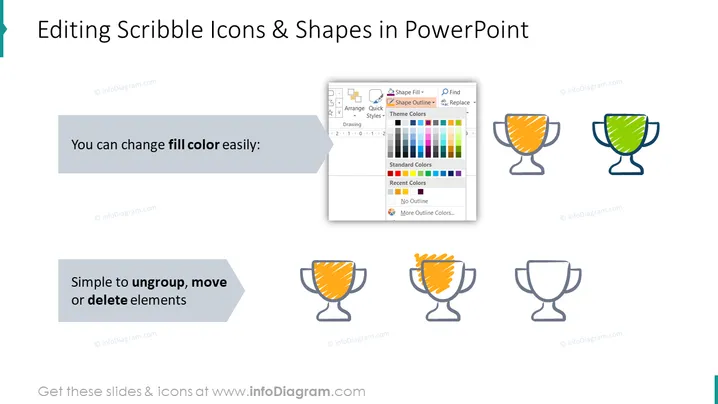
Editing Scribble Icons & Shapes in PowerPoint
Slide Content
The slide is designed to showcase how scribble icons and shapes in PowerPoint can be easily modified. It highlights the ease of changing fill color and the simplicity of ungroupping, moving, or deleting elements of a shape. Changing fill color is illustrated with a PowerPoint menu showing the color selection panel, aiming to demonstrate how users can customize the appearance of their icons. The simplicity of modifying elements is emphasized to communicate the user-friendly nature of PowerPoint editing features.
Graphical Look
- The slide has a clean white background with a blue-green title bar on the top.
- The title of the slide is in black, with a subtle shadow effect, and it's aligned to the left.
- There are two grey text boxes with rounded corners, each containing a snippet of text in white font, both appearing as speech bubbles.
- A screenshot of the PowerPoint interface showing the 'Shape Fill' dropdown menu with various color options is to the right of the first text box.
- Adjacent to the screenshot are four trophy icons with a hand-drawn, scribble style. They are shown in a sequence, demonstrating the color fill change process.
- The first trophy is grey, the second is colored with an orange scribble pattern, and the third is filled with a green scribble pattern. The fourth trophy remains uncolored, demonstrating the editing process.
- The main graphical elements are laid out in a balanced manner with ample white space, creating an organized and easily understandable structure.
The slide presents a minimalist design emphasizing clarity and educational content. Its visual elements and colors are harmoniously combined to enhance the understanding of PowerPoint editing functions.
Use Cases
- To teach PowerPoint users about icon customization in a training or educational workshop.
- During a company presentation to demonstrate the branding process by customizing icons to match corporate colors.
- In a webinar that teaches digital content creation, emphasizing how to personalize visuals.
- As part of an instructional manual or guide for new employees who need to learn how to adapt company presentations to specific needs or branded content.
How to Edit
How to edit text & colors

How to expand / shorten diagram

How to Replace Icons in infoDiagram PPT


