

Your graphics add a nice touch to my presentations and I recently used them for one of my all-hands meetings. Your toolbox adds professionalism to my slides. Instead of using standard clipart.
Claude Jones, Director of Engineer, @Walmartlabs, USA

Your graphics add a nice touch to my presentations and I recently used them for one of my all-hands meetings. Your toolbox adds professionalism to my slides. Instead of using standard clipart.
Claude Jones, Director of Engineer, @Walmartlabs, USA
I needed a fresh look at some of my slides. I've tried to find a way to create a paintbrush effect, to underline, accentuate, add some color and the handwritten markers were just the things. Very easy to use, easy to size, change the color. It was an affordable, perfect solution and I'm happy to recommend it.
Anonymous, US
The crisp, clean look of the graphics, and the fact that it allowed me to easily edit and change the colors to match the template was my main reason for purchasing them.
Brandie Jenkins, E-learning Developer, USA
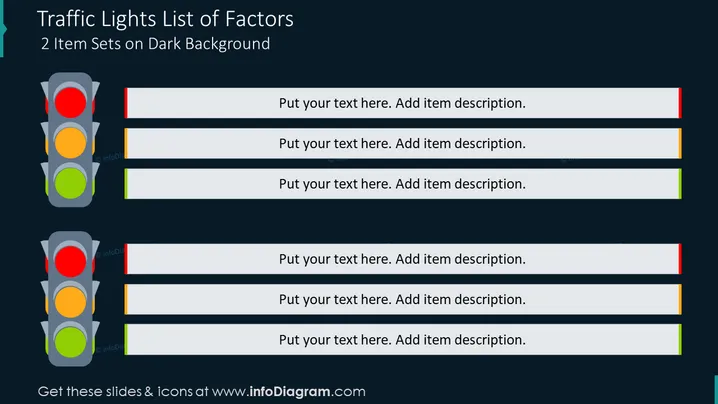
The slide is structured to evaluate or present factors in a list format, employing a traffic light system as a visual metaphor for status indication. It includes two sets of items, each with a traffic light graphic displaying red, yellow, or green lights. These colors traditionally represent levels of concern or progress, with red indicating a stop or high priority, yellow caution or medium priority, and green go or low priority.
The overall design is modern and professional, with the dark background making the color-coded elements of the traffic lights stand out for easy interpretation.
This slide is suitable for business presentations that require a clear and straightforward method to prioritize tasks, indicate project status, or communicate the urgency of issues. It could be effectively used in project management, team meetings, or strategy sessions.



