
Reviews
Sus gráficos añaden un toque agradable a mis presentaciones y recientemente los usé para una de mis reuniones generales. Su conjunto de herramientas añade profesionalismo a mis diapositivas. En lugar de usar imágenes prediseñadas estándar.
Necesitaba un aspecto fresco para algunas de mis diapositivas. Había intentado encontrar una forma de crear un efecto de pincel, de subrayar, acentuar, añadir algo de color y los marcadores escritos a mano fueron justo lo que necesitaba. Muy fácil de usar, fácil de ajustar el tamaño, cambiar el color. Fue una solución asequible y perfecta, y estoy feliz de recomendarla.
El aspecto nítido y limpio de los gráficos, y el hecho de que me permitiera editar y cambiar fácilmente los colores para que coincidieran con la plantilla fue mi principal razón para comprarlos.
Description
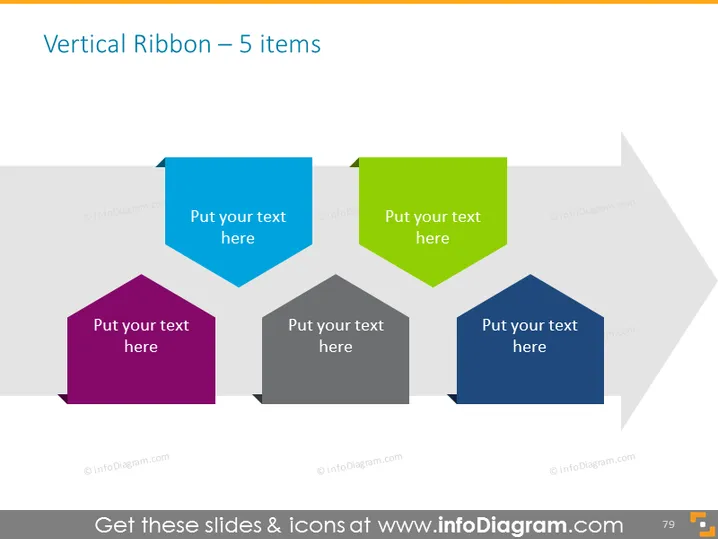
Vertical Ribbon – 5 items
Slide Content
The PowerPoint slide is titled "Vertical Ribbon – 5 items" and visually presents a sequence of 5 ribbon-shaped elements staggered vertically. Each ribbon represents an item and includes placeholder text "Put your text here", inviting the presenter to customize with specific content. These items could detail steps in a process, a list of features, services, or a sequence of events. The arrangement implies an order but may also imply a connection or relationship between the items.
Graphical Look
- The slide background is white.
- There are 5 colored ribbon shapes aligned diagonally from the bottom left to the top right of the slide.
- Each ribbon element comes in a different color: purple, dark grey, blue, green, and a lighter grey.
- The placeholder text "Put your text here" is centrally aligned on each ribbon in a bold, clear font that contrasts well with the ribbon colors.
- The ribbons are staggered, with each subsequent ribbon slightly higher and overlapping the one before it, creating a sense of depth.
The overall look of the slide is modern and colorful with a professional aesthetic. The use of geometric shapes and staggered arrangement provides a clear visual path for the viewer's eye to follow from one element to the next.
Use Cases
- To present sequential steps in a business strategy or process.
- To outline multiple product features or service offerings in a sales presentation.
- To list key points or objectives in a project or business plan.
- To showcase a timeline of events or milestones in a corporate history or project development phase.
How to Edit
How to edit text & colors

How to expand / shorten diagram

How to Replace Icons in infoDiagram PPT


