
Reviews
Your graphics add a nice touch to my presentations and I recently used them for one of my all-hands meetings. Your toolbox adds professionalism to my slides. Instead of using standard clipart.
I needed a fresh look at some of my slides. I've tried to find a way to create a paintbrush effect, to underline, accentuate, add some color and the handwritten markers were just the things. Very easy to use, easy to size, change the color. It was an affordable, perfect solution and I'm happy to recommend it.
The crisp, clean look of the graphics, and the fact that it allowed me to easily edit and change the colors to match the template was my main reason for purchasing them.
Description
Team & Product Introduction Section Slide
Slide Content
The slide is designed to introduce a section focused on team and product information. This type of slide is typically used in presentations to provide a clear demarcation between different sections, helping the audience to mentally prepare for a new set of information regarding a team, its members, dynamics, and the product or products they are responsible for.
Graphical Look
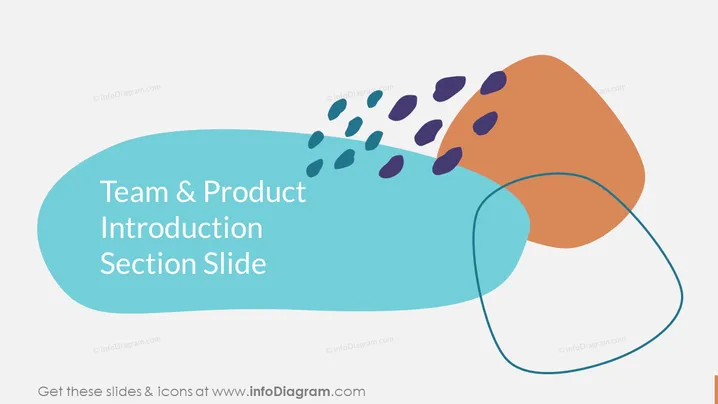
- The slide features a large, teal-colored, rounded rectangle in the background, giving a sense of space for the title.
- Overlapping the teal shape is another irregularly shaped object with a burnt orange color, adding a contrasting visual element to the slide.
- A series of dark blue oval shapes resembling raindrops or leaves scatter from the right end of the orange shape towards the upper right corner.
- There is a thin-lined circle partially surrounding the burnt orange shape, intersecting it towards the bottom right.
- The text "Team & Product Introduction Section Slide" is placed in the lower third of the teal shape, centered and in a large, white font, ensuring readability.
The overall look of the slide is modern and abstract, with a playful use of shapes and colors that creates a visually interesting hierarchy and draws attention to the slide title. The use of empty space and contrasting colors creates a focal point without overwhelming the viewer.
Use Cases
- To mark the beginning of a new section in a business presentation, particularly when transitioning to discussing team roles or product features.
- As a visual break in longer presentations to help maintain audience engagement by clearly separating differing content areas.
- To introduce team members and product details in startup pitches or project proposals to potential investors or stakeholders.
- During internal company meetings, to outline the agenda items related to team development or product strategy updates.
How to Edit
How to edit text & colors

How to expand / shorten diagram

How to Replace Icons in infoDiagram PPT


