
Reviews
The icons are fantastic, easy to use, and will add value to any project or presentation. Keep up the great work.
I love how simple infoDiagram's solutions are and the personal interest they took in my work. Recommended 1000%!
The crisp, clean look of the graphics, and the fact that it allowed me to easily edit and change the colors to match the template was my main reason for purchasing them.
Description
Flat Icons – Strategy, Resources, Communication (extendable)
Slide Content
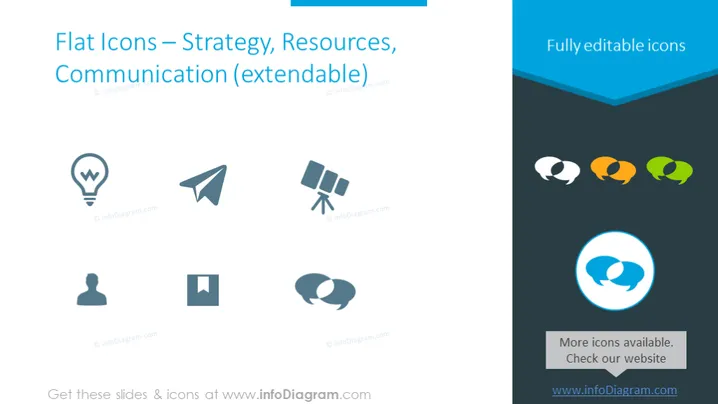
The PowerPoint slide presents a collection of flat icons that are classified under the themes of Strategy, Resources, and Communication. These icons are intended to be symbolic representations of various business or conceptual ideas. The icons include a light bulb indicating an idea, a paper airplane signifying sending or delivering a message, and satellite dishes representing communication technology. A user profile suggests customer or user-focused strategies, a square that could serve as a placeholder for additional content, and conversation bubbles depicting dialogue or discussion.
Graphical Look
- The background color is a gradient ranging from light blue at the top fading to white in the middle.
- The title is in large, bold, dark blue text at the top of the slide.
- Six icons are aligned in two columns of three rows on the left side of the slide.
- Each icon is accompanied by a small watermark logo below it.
- Over on the right is a vertical blue banner with the phrase "Fully editable icons" written in white text.
- Below the banner are three conversation bubbles with a gradient fill, suggesting color options for the icons.
- At the bottom right, there is a speech bubble within a blue circle and text that informs about more icons available on a website.
The slide has a clean and professional look, with plenty of whitespace and a modern design. The use of flat design for the icons and the consistent color scheme provides a cohesive and visually appealing interface.
Use Cases
- To visually represent key concepts during a strategizing session.
- To enhance slide readability in a training presentation by using icons to symbolize different topics or modules.
- To make an interactive menu for topics covered in a workshop, where icons serve as intuitive buttons for navigation.
- To create an engaging and accessible webcast, adding icons to slides to aid viewers in quickly grasping the content.
How to Edit
How to edit text & colors

How to expand / shorten diagram

How to Replace Icons in infoDiagram PPT


