

Your graphics add a nice touch to my presentations and I recently used them for one of my all-hands meetings. Your toolbox adds professionalism to my slides. Instead of using standard clipart.
Claude Jones, Director of Engineer, @Walmartlabs, USA

Your graphics add a nice touch to my presentations and I recently used them for one of my all-hands meetings. Your toolbox adds professionalism to my slides. Instead of using standard clipart.
Claude Jones, Director of Engineer, @Walmartlabs, USA
I needed a fresh look at some of my slides. I've tried to find a way to create a paintbrush effect, to underline, accentuate, add some color and the handwritten markers were just the things. Very easy to use, easy to size, change the color. It was an affordable, perfect solution and I'm happy to recommend it.
Anonymous, US
The crisp, clean look of the graphics, and the fact that it allowed me to easily edit and change the colors to match the template was my main reason for purchasing them.
Brandie Jenkins, E-learning Developer, USA
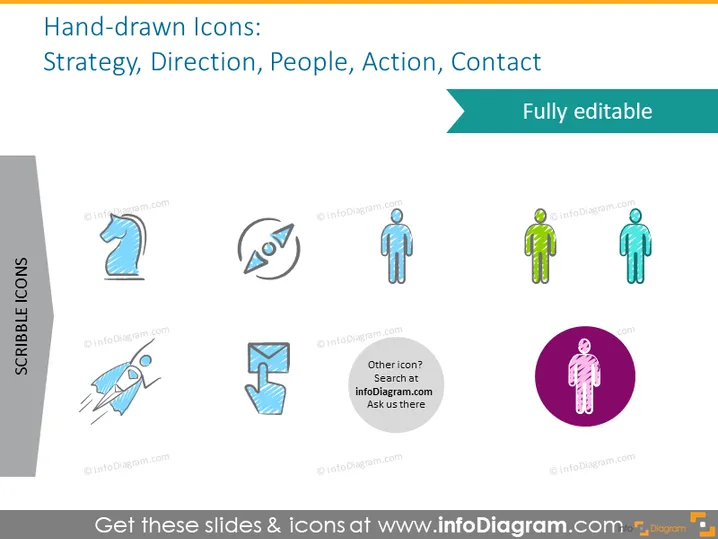
This PowerPoint slide showcases a collection of hand-drawn icons representing different concepts such as strategy, direction, people, action, and contact. Strategy is depicted by a chess knight piece, symbolizing planning and tactical thinking. The direction is represented by a compass, indicating navigation and guidance. People are shown as humanoid figures, signifying social aspects or human resources. An action is denoted by a running person, conveying motion or initiative. Contact is symbolized by a handshake, alluding to networking or agreements.
The slide has a clean and modern look with colorful hand-drawn icons that draw the viewer's attention. The icons are evenly distributed across the slide, offering a balanced visual experience.



