
Reviews
Your graphics add a nice touch to my presentations and I recently used them for one of my all-hands meetings. Your toolbox adds professionalism to my slides. Instead of using standard clipart.
I needed a fresh look at some of my slides. I've tried to find a way to create a paintbrush effect, to underline, accentuate, add some color and the handwritten markers were just the things. Very easy to use, easy to size, change the color. It was an affordable, perfect solution and I'm happy to recommend it.
The crisp, clean look of the graphics, and the fact that it allowed me to easily edit and change the colors to match the template was my main reason for purchasing them.
Description
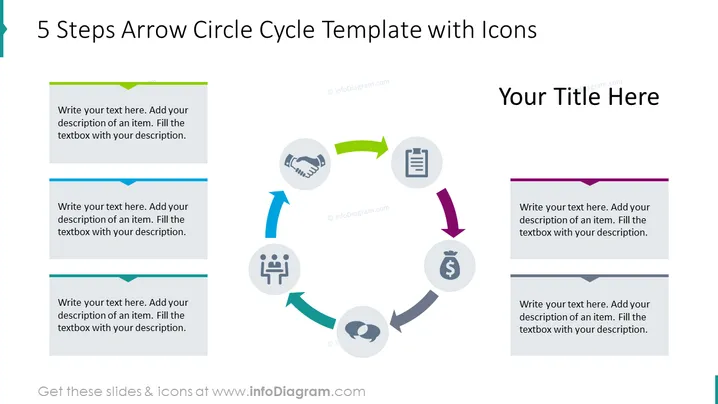
5 Steps Arrow Circle Cycle Template with Icons
Slide Content
The PowerPoint slide presents a circular process flow with five steps, connected by arrows to denote progression. Each step is represented by an icon suggestive of various business processes or stages, such as handshake, document, team meeting, phone call, and money. The adjacent text boxes allow for detailed descriptions of each step, explaining the relevance or actions involved in that particular stage of the cycle.
Graphical Look
- A circular flow diagram occupies the center of the slide, with five equally spaced, gray-colored circles.
- Each circle contains an icon, representing different stages or operations.
- Colored arrows in green, blue, dark teal, purple, and dark gray connect the circles, suggesting a flow or sequence.
- To the left, right, and bottom of the circular diagram, there are text boxes with space for explanations; these text boxes have colored tabs that match the arrows.
- The slide's background is white, providing contrast that makes the circular flow diagram and text boxes stand out.
- The slide title at the top is in a large, bold font, which draws attention.
The overall look of the slide is clean and professional, with a straightforward layout that guides the viewer's eye around the cycle. The use of color-coded arrows and icons simplifies the representation of a process flow, ensuring clarity and focus.
Use Cases
- Illustrating the stages of a project lifecycle in a business presentation.
- Explaining the step-by-step process of a new business initiative during a team meeting.
- Outlining the customer journey or service flow during a marketing strategy discussion.
- Presenting a product development cycle during a stakeholder update or pitch.
How to Edit
How to edit text & colors

How to expand / shorten diagram

How to Replace Icons in infoDiagram PPT


