
Reviews
Your graphics add a nice touch to my presentations and I recently used them for one of my all-hands meetings. Your toolbox adds professionalism to my slides. Instead of using standard clipart.
I needed a fresh look at some of my slides. I've tried to find a way to create a paintbrush effect, to underline, accentuate, add some color and the handwritten markers were just the things. Very easy to use, easy to size, change the color. It was an affordable, perfect solution and I'm happy to recommend it.
The crisp, clean look of the graphics, and the fact that it allowed me to easily edit and change the colors to match the template was my main reason for purchasing them.
Description
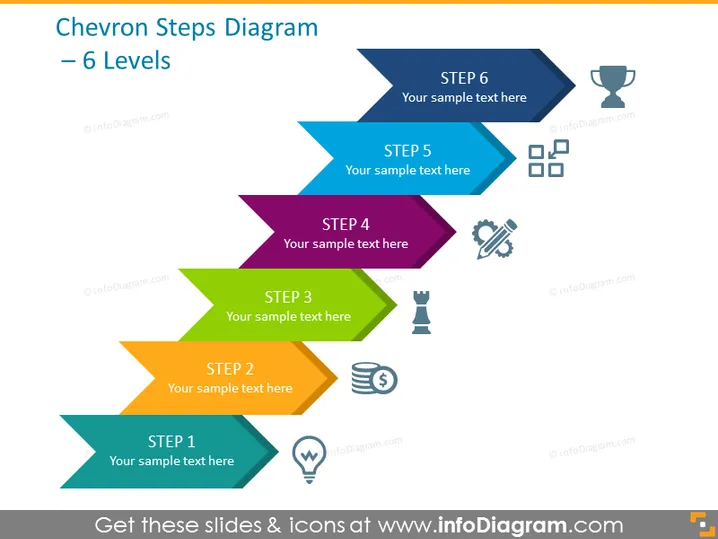
Chevron Steps Diagram – 6 Levels
Slide Content
The slide displays a Chevron Steps Diagram that is designed to represent a process that involves six sequential steps. Each step is represented by a chevron shape with a distinct color and has a placeholder for text ("Your sample text here"). Each step also includes an icon suggesting the type of activity or milestone it represents. For instance, Step 1 includes a lightbulb icon, indicating the ideation or concept phase, and Step 6 features a trophy, symbolizing completion or success.
Graphical Look
- The slide features a sequence of six chevron-shaped arrows directed from left to right, indicating a progression.
- Each chevron is filled with a different solid color, creating a visually appealing gradient effect across the slide.
- A corresponding icon is situated to the right of each chevron, representing different steps or stages in a process.
- The chevrons and icons are paired with editable text boxes for descriptive content.
- The overall design is clean, modern, and uses flat design principles without any 3D effects or shadows.
The slide has a polished and professional look, easy on the eyes due to the use of gradient colors. Icons add an element of visual communication, making the stages easier to distinguish at a glance.
Use Cases
- To outline step-by-step processes or workflows in business presentations.
- For visualizing project phases, from conception to completion, in project management meetings.
- As an agenda slide, to showcase the sequence of topics that will be covered in a meeting or workshop.
- To depict the stages of product development or market strategy during a marketing presentation.
How to Edit
How to edit text & colors

How to expand / shorten diagram

How to Replace Icons in infoDiagram PPT


