
Reviews
Ihre Grafiken verleihen meinen Präsentationen eine nette Note, und ich habe sie kürzlich für eines meiner All-Hands-Meetings verwendet. Ihre Toolbox verleiht meinen Folien Professionalität, anstatt Standard-Clipart zu verwenden.
Ich brauchte einen neuen Blick auf einige meiner Folien. Ich habe versucht, einen Weg zu finden, einen Pinselschlag-Effekt zu erzielen, um zu unterstreichen, hervorzuheben, Farbe hinzuzufügen, und die handgeschriebenen Markierungen waren genau das Richtige. Sehr einfach zu bedienen, leicht in der Größe zu ändern, die Farbe zu ändern. Es war eine erschwingliche, perfekte Lösung und ich empfehle sie gerne weiter.
Die klare, saubere Optik der Grafiken und die Tatsache, dass ich die Farben leicht bearbeiten und an die Vorlage anpassen konnte, war mein Hauptgrund für den Kauf.
Description
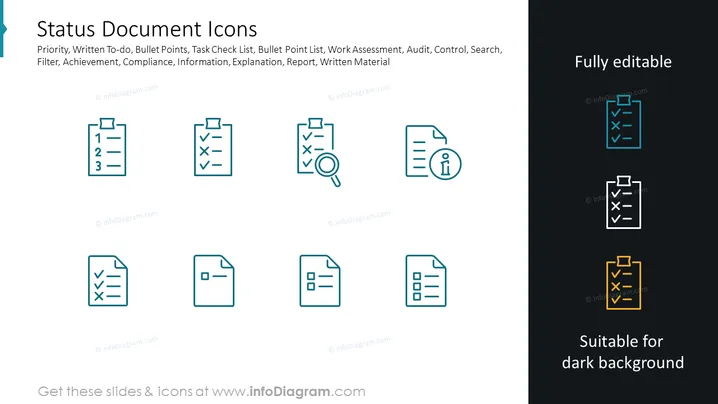
Status Document Icons
Slide Content
The PowerPoint slide titled "Status Document Icons" displays a collection of icons related to various document-related actions such as "Priority," which likely indicates the importance level of a document, "Written To-do" for listing tasks, "Bullet Points" that suggest items in a document, "Task Check List" for tracking completion, "Work Assessment" pertaining to evaluating performance, "Audit" for financial review, "Control" for management, "Search" indicating the ability to find information, "Filter" for narrowing down criteria, "Achievement" probably representing successful accomplishment, "Compliance" for adherence to rules, "Information" for data provision, "Explanation" to clarify details, "Report" for structured information, and "Written Material" referring to the document content as a whole.
Graphical Look
- The slide uses a clean, minimalist design with a white background and two columns of icons.
- Icons are uniformly styled with thin line art, creating a cohesive and professional appearance.
- The left column has six light blue icons and the right column features three icons, with one highlighted in white on blue background and one in yellow, demonstrating how icons can be adapted for different background colors.
- Each icon is accompanied by a corresponding label, or tag, beneath it that categorizes its function.
- There are two blocks of text: on the right side, "Fully editable" and at the bottom, "Suitable for dark background," informing viewers about the versatility of the icon designs.
The visual composition of the slide is modern and straightforward, utilizing ample space and a structured layout. The icons are distinct yet harmoniously aligned, facilitating quick recognition and interpretation.
Use Cases
- Presenting workflow or process steps during business meetings to illustrate the progression of tasks or documents.
- Creating training materials where each icon visually represents different aspects or stages of document management.
- Enhancing reports or informational documents with clear, themed icons to emphasize specific points or sections within the content.
- Designing user interface screens or help guides, where each icon can provide a quick visual reference for various document-related functionalities or statuses.
How to Edit
How to edit text & colors

How to expand / shorten diagram

How to Replace Icons in infoDiagram PPT


