

Your graphics add a nice touch to my presentations and I recently used them for one of my all-hands meetings. Your toolbox adds professionalism to my slides. Instead of using standard clipart.
Claude Jones, Director of Engineer, @Walmartlabs, USA

Your graphics add a nice touch to my presentations and I recently used them for one of my all-hands meetings. Your toolbox adds professionalism to my slides. Instead of using standard clipart.
Claude Jones, Director of Engineer, @Walmartlabs, USA
I needed a fresh look at some of my slides. I've tried to find a way to create a paintbrush effect, to underline, accentuate, add some color and the handwritten markers were just the things. Very easy to use, easy to size, change the color. It was an affordable, perfect solution and I'm happy to recommend it.
Anonymous, US
The crisp, clean look of the graphics, and the fact that it allowed me to easily edit and change the colors to match the template was my main reason for purchasing them.
Brandie Jenkins, E-learning Developer, USA
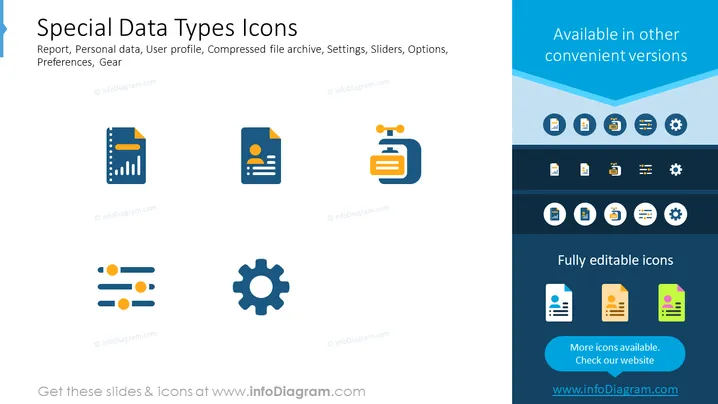
The slide demonstrates a collection of icons representing special data types and system functions. It lists icons for "Report" (indicative of documents with statistics or analytics), "Personal data" (symbols for user-focused information), "User profile" (likely representing settings or account information for an individual), "Compressed file archive" (depicting a zipped folder or file collection), "Settings" (the gear icon typically associated with configuration options), "Sliders" (suggesting adjustable controls or preferences), and "Options" (another term for choices in settings), as well as "Preferences, Gear."
The slide employs a modern and professional design with a well-organized layout and is visually balanced. The use of contrasting colors and simple iconography makes the content easy to interpret.



