
Reviews
Sus gráficos añaden un toque agradable a mis presentaciones y recientemente los usé para una de mis reuniones generales. Su conjunto de herramientas añade profesionalismo a mis diapositivas. En lugar de usar imágenes prediseñadas estándar.
Necesitaba un aspecto fresco para algunas de mis diapositivas. Había intentado encontrar una forma de crear un efecto de pincel, de subrayar, acentuar, añadir algo de color y los marcadores escritos a mano fueron justo lo que necesitaba. Muy fácil de usar, fácil de ajustar el tamaño, cambiar el color. Fue una solución asequible y perfecta, y estoy feliz de recomendarla.
El aspecto nítido y limpio de los gráficos, y el hecho de que me permitiera editar y cambiar fácilmente los colores para que coincidieran con la plantilla fue mi principal razón para comprarlos.
Description
Solutions Comparison Table 2
Slide Content
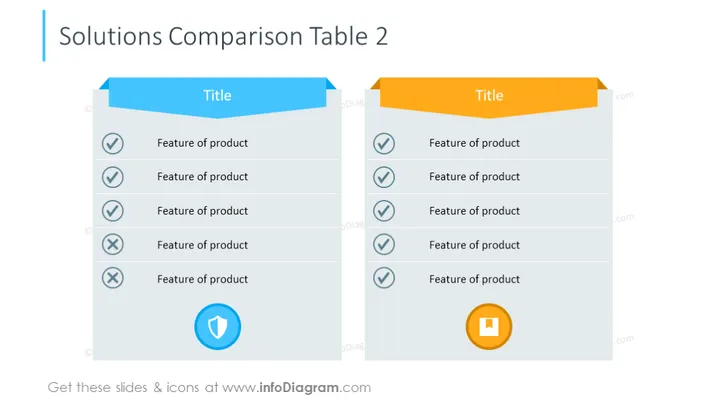
The slide presents a comparison of two different solutions with their respective features. Each solution has a distinct colored title banner and a list of features underneath. The features are each marked with a check mark for positive attributes or a cross for negative attributes, indicating their presence or absence in the product. There is also a graphical representation of approval or disapproval at the bottom of each list, further emphasizing the product's strengths or weaknesses.
Graphical Look
- Two parallelogram-shaped title banners, one blue on the left side and one orange on the right side, each containing the word "Title."
- Two lists of features, one under each title banner, with 3D style borders.
- Each feature is paired with a circular check mark icon; features towards the bottom have circular cross icons instead.
- At the bottom of each feature list, there is a shield icon with a check mark for the blue column and a square icon with an arrow pointing down for the orange column.
The overall design of the slide is clean and modern with a 3D effect given to the feature comparison tables. The use of contrasting colors for the titles and check/cross icons makes it easy to distinguish between the two solutions being compared.
Use Cases
- To compare product offerings during a sales pitch, highlighting the strengths and weaknesses of each.
- During internal strategic meetings, to evaluate competitors' products against one's own.
- In a marketing presentation to communicate to customers why one product might be superior to another.
- To facilitate decision-making in a procurement process by comparing different vendor proposals.
How to Edit
How to edit text & colors

How to expand / shorten diagram

How to Replace Icons in infoDiagram PPT


