
Reviews
Sus gráficos añaden un toque agradable a mis presentaciones y recientemente los usé para una de mis reuniones generales. Su conjunto de herramientas añade profesionalismo a mis diapositivas. En lugar de usar imágenes prediseñadas estándar.
Necesitaba un aspecto fresco para algunas de mis diapositivas. Había intentado encontrar una forma de crear un efecto de pincel, de subrayar, acentuar, añadir algo de color y los marcadores escritos a mano fueron justo lo que necesitaba. Muy fácil de usar, fácil de ajustar el tamaño, cambiar el color. Fue una solución asequible y perfecta, y estoy feliz de recomendarla.
El aspecto nítido y limpio de los gráficos, y el hecho de que me permitiera editar y cambiar fácilmente los colores para que coincidieran con la plantilla fue mi principal razón para comprarlos.
Description
Segmented Bridge & Pillars Concept Graphics
Slide Content
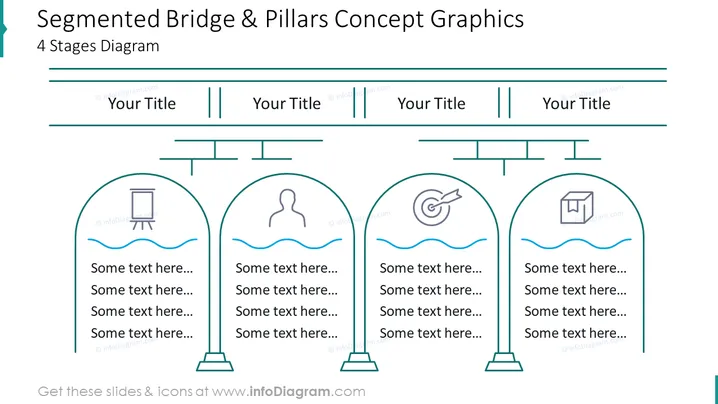
This PowerPoint slide is themed "Segmented Bridge & Pillars Concept Graphics" and illustrates a 4 Stages Diagram. Each stage is symbolized by a pillar standing on a wavy line, representing water or a gap, topped with an icon and space for text. The first pillar icon looks like a presentation screen, perhaps denoting the start or planning phase. The second is a person's silhouette, which can imply a human-focused stage, such as team development or customer interaction. The third shows a target, suggesting a stage focused on goals or outcomes. Finally, the fourth displays a box, which may represent the final product or delivery.
Graphical Look
- The slide uses a tranquil color palette, predominantly shades of blue and teal, suggesting a professional and calm atmosphere.
- It features four rounded arches that serve as the primary visual elements supporting each pillar.
- Each pillar has a distinct icon at the top, within a light-colored circle, to represent a different stage or concept.
- The background is a simple, solid light blue, allowing the content to stand out clearly.
- Horizontal lines connect the tops of the arches, resembling a segmented bridge or a timeline.
- Text placeholders are provided below each pillar for additional information or descriptions.
The overall aesthetic of the slide is clean and orderly, with a well-structured design that eases the visualization of sequences or stages. The icons provide a clear and immediate understanding of each step's significance within the overall concept.
Use Cases
- To outline the steps of a project timeline or development process in business presentations.
- For summarizing the key stages of a product lifecycle, from inception to market release.
- As a visual metaphor for bridging the gap between challenges or obstacles in a process or strategy overview.
- To depict a roadmap for process improvement or change management initiatives, highlighting critical stages and the flow of activities.
How to Edit
How to edit text & colors

How to expand / shorten diagram

How to Replace Icons in infoDiagram PPT


