
Reviews
Your graphics add a nice touch to my presentations and I recently used them for one of my all-hands meetings. Your toolbox adds professionalism to my slides. Instead of using standard clipart.
I needed a fresh look at some of my slides. I've tried to find a way to create a paintbrush effect, to underline, accentuate, add some color and the handwritten markers were just the things. Very easy to use, easy to size, change the color. It was an affordable, perfect solution and I'm happy to recommend it.
The crisp, clean look of the graphics, and the fact that it allowed me to easily edit and change the colors to match the template was my main reason for purchasing them.
Description
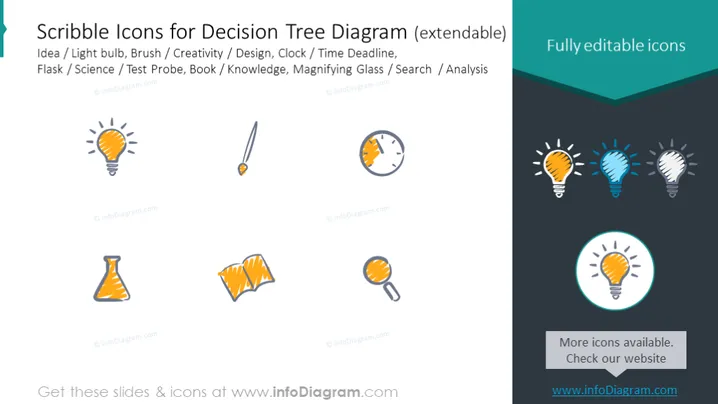
Scribble Icons for Decision Tree Diagram (extendable)
Slide Content
The slide presents a set of scribble icons that are intended for use in decision tree diagrams. The icons represent different concepts: a light bulb for idea, a brush for creativity or design, a clock for time deadlines, a flask for science, a test probe for experiments, a book for knowledge, and a magnifying glass for search or analysis. Each icon illustrates a simple concept that can be used to signify different decisions or steps in a decision-making process.
Graphical Look
- The slide has a clean, flat design aesthetic with a light background.
- There are seven hand-drawn style icons displayed in two rows.
- The icons are colored in a combination of orange, teal, and grey, implying creativity and neutrality.
- "Fully editable icons" is mentioned in a dark teal header in the right corner, with a contrasting lighter shade of teal below.
- A light shadow effect is applied behind the icons, giving a slight sense of depth.
- The slide uses sans-serif typography for text, enhancing readability.
- Balance in design is apparent, with text aligned to the left and a block of text in the top right, maintaining visual symmetry.
The overall look is modern and professional with a creative twist, emphasized by the scribble style of the icons. The visual elements are organized in a way that conveys simplicity and ease of understanding.
Use Cases
- In project management presentations to illustrate different stages or decision points within a project lifecycle.
- In marketing strategy sessions to represent various customer decision paths or consumer behaviors.
- During educational or training sessions to visually describe steps in a process or elements of a concept.
- As part of brainstorming workshops to help teams visualize and connect ideas or solutions.
How to Edit
How to edit text & colors

How to expand / shorten diagram

How to Replace Icons in infoDiagram PPT


