

Your graphics add a nice touch to my presentations and I recently used them for one of my all-hands meetings. Your toolbox adds professionalism to my slides. Instead of using standard clipart.
Claude Jones, Director of Engineer, @Walmartlabs, USA

Your graphics add a nice touch to my presentations and I recently used them for one of my all-hands meetings. Your toolbox adds professionalism to my slides. Instead of using standard clipart.
Claude Jones, Director of Engineer, @Walmartlabs, USA
I needed a fresh look at some of my slides. I've tried to find a way to create a paintbrush effect, to underline, accentuate, add some color and the handwritten markers were just the things. Very easy to use, easy to size, change the color. It was an affordable, perfect solution and I'm happy to recommend it.
Anonymous, US
The crisp, clean look of the graphics, and the fact that it allowed me to easily edit and change the colors to match the template was my main reason for purchasing them.
Brandie Jenkins, E-learning Developer, USA
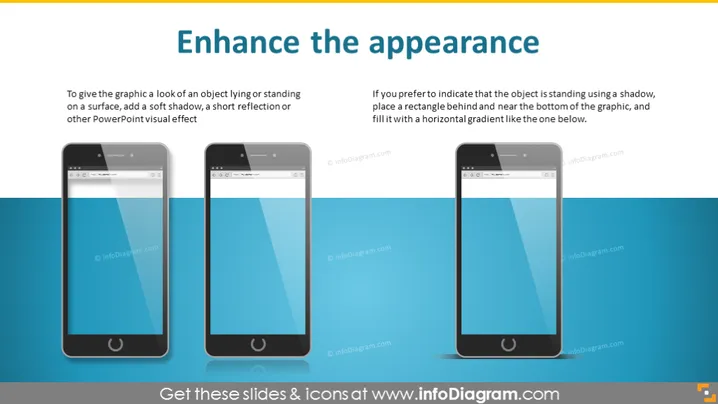
This PowerPoint slide, titled "Enhance the appearance," offers tips on improving the visual appeal of graphics within presentations. It compares two methods to give graphics the look of an object lying or standing on a surface. The left side suggests adding a soft shadow or reflection for a subtler effect. A soft shadow beneath an object gives the illusion of depth, making it appear grounded. Similarly, a reflection can suggest a glossy surface underneath the object. On the right, it recommends using a shadow and a horizontal gradient behind the object for a more pronounced standing effect. The shadow creates an illusion of the object being elevated, while the gradient serves as a visual anchor, enhancing the perception of depth.
The slide maintains a minimalist and professional design, using a balanced distribution of text and imagery. The graphics are sharp and high-quality, serving as clear examples of the described enhancement techniques.



