
Reviews
Sus gráficos añaden un toque agradable a mis presentaciones y recientemente los usé para una de mis reuniones generales. Su conjunto de herramientas añade profesionalismo a mis diapositivas. En lugar de usar imágenes prediseñadas estándar.
Necesitaba un aspecto fresco para algunas de mis diapositivas. Había intentado encontrar una forma de crear un efecto de pincel, de subrayar, acentuar, añadir algo de color y los marcadores escritos a mano fueron justo lo que necesitaba. Muy fácil de usar, fácil de ajustar el tamaño, cambiar el color. Fue una solución asequible y perfecta, y estoy feliz de recomendarla.
El aspecto nítido y limpio de los gráficos, y el hecho de que me permitiera editar y cambiar fácilmente los colores para que coincidieran con la plantilla fue mi principal razón para comprarlos.
Description
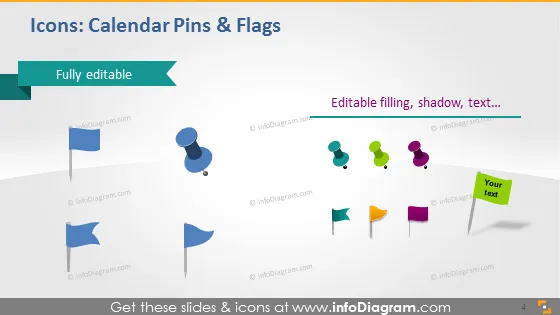
Icons: Calendar Pins & Flags
Slide Content
The PowerPoint slide presents various icons representing calendar pins and flags, emphasizing their customizability with features such as fully editable elements and options for editable filling, shadow, and text. This collection of pins and flags in different shapes and colors could serve as visual anchors or markers for dates, tasks, or priorities in a calendar or timeline context within a presentation.
Graphical Look
- The slide background is a gradient from white at the top to a darker shade at the bottom.
- A blue rectangular shape at the top works as a title holder with white text stating "Icons: Calendar Pins & Flags".
- The phrase "Fully editable" appears to the left side with an arrow pointing towards the title.
- There are two groups of icons separated by a label with editable features:
- On the left, there are three blue flag icons with varying orientations and shapes.
- On the right, multiple pin icons in different colors, green, purple, yellow, and pink, lead to a final flag with a callout box saying "Your text".
- Text to the right of the slide suggests that filling, shadow, and text are all editable attributes for these icons.
- The slide has a page number in the bottom right corner.
The slide has a sleek, professional appearance, with a clear focus on the editable icons. The color gradient background provides a subtle depth, and the icons exhibit a modern flat design style.
Use Cases
- To highlight key dates or milestones in a project timeline within a business presentation.
- As visual markers for planning events or deadlines in a calendar view during a strategy meeting.
- To emphasize specific tasks or discussion points within an agenda for team meetings or workshops.
- For illustrating steps in a process where each pin or flag could represent a different stage or action item.
How to Edit
How to edit text & colors

How to expand / shorten diagram

How to Replace Icons in infoDiagram PPT


