
Reviews
Ihre Grafiken verleihen meinen Präsentationen eine nette Note, und ich habe sie kürzlich für eines meiner All-Hands-Meetings verwendet. Ihre Toolbox verleiht meinen Folien Professionalität, anstatt Standard-Clipart zu verwenden.
Ich brauchte einen neuen Blick auf einige meiner Folien. Ich habe versucht, einen Weg zu finden, einen Pinselschlag-Effekt zu erzielen, um zu unterstreichen, hervorzuheben, Farbe hinzuzufügen, und die handgeschriebenen Markierungen waren genau das Richtige. Sehr einfach zu bedienen, leicht in der Größe zu ändern, die Farbe zu ändern. Es war eine erschwingliche, perfekte Lösung und ich empfehle sie gerne weiter.
Die klare, saubere Optik der Grafiken und die Tatsache, dass ich die Farben leicht bearbeiten und an die Vorlage anpassen konnte, war mein Hauptgrund für den Kauf.
Description
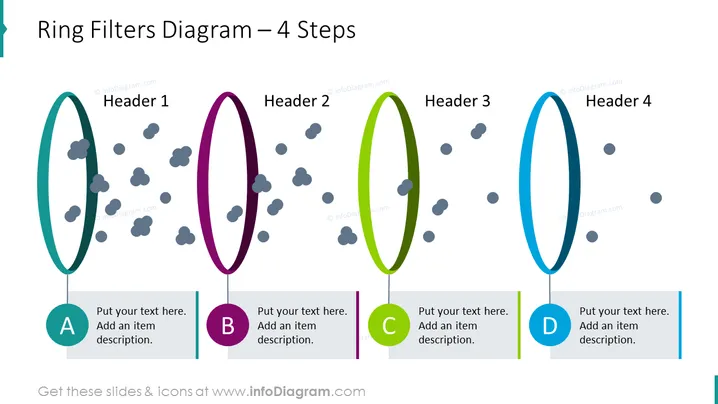
Ring Filters Diagram – 4 Steps
Slide Content
The slide appears to represent a process sequence or filtration in four steps using ring-shaped visuals, labeled from A to D with corresponding headers. Each ring encircles a cluster of grey dots, symbolizing elements being filtered or selected through each step. A place for text and a more detailed item description is provided under each labeled ring, allowing the presenter to explain the specific function or characteristic of that particular step in the process.
Graphical Look
- The slide features a horizontal sequence of four stylized rings in different colors (teal, purple, lime green, and blue).
- Each ring is encircled by smaller gray dots, possibly illustrating filtration or selection.
- Below each ring, there is a colored circle with a capital letter (A, B, C, D) inside, coordinating with the color of the ring above.
- Each colored circle is connected to a text box with placeholder text for additional detail.
- The rings and accompanying text boxes are aligned horizontally across the slide.
- The slide's background is white, which contrasts with the colorful elements.
The slide has a clean and modern design, with a good balance between visual elements and whitespace, making it easy to focus on the content.
Use Cases
- To display a linear step-by-step process or workflow in a business presentation.
- To illustrate phases of product development or project milestones.
- As a metaphor for filtering information or sorting data in different stages.
- To provide an overview of a sequential procedure or a series of actions required to achieve a specific goal in training materials.
How to Edit
How to edit text & colors

How to expand / shorten diagram

How to Replace Icons in infoDiagram PPT


