
Reviews
Your graphics add a nice touch to my presentations and I recently used them for one of my all-hands meetings. Your toolbox adds professionalism to my slides. Instead of using standard clipart.
I needed a fresh look at some of my slides. I've tried to find a way to create a paintbrush effect, to underline, accentuate, add some color and the handwritten markers were just the things. Very easy to use, easy to size, change the color. It was an affordable, perfect solution and I'm happy to recommend it.
The crisp, clean look of the graphics, and the fact that it allowed me to easily edit and change the colors to match the template was my main reason for purchasing them.
Description
Slide Title
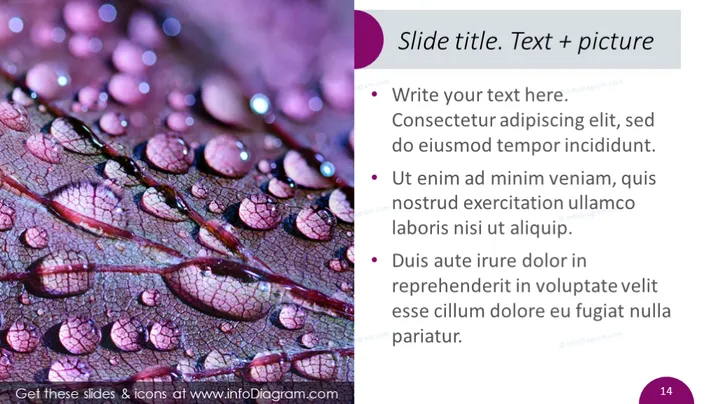
Slide title. Text + picture
Slide Content
The PowerPoint slide is likely designed to showcase how text descriptions can complement an image. The title indicates a dual focus on textual and visual information, suggesting a balance between the two methods of communication. The slide contains bullet points offering placeholder text which demonstrates how one could structure information in a concise, easy-to-read manner. These bullet points are probably meant to be replaced with relevant content to suit a specific presentation topic.
Graphical Look
- A background image occupies approximately two-thirds of the slide, depicting water droplets on what appears to be a leaf surface.
- The right third of the slide features a purple gradient rectangular shape for the title and text area.
- The title of the slide is in white font with a drop shadow, increasing its legibility over the purple background.
- Below the title, bullet points are aligned to the left with large, bold white text for the initial headers, followed by standard white text.
- Specific keywords within the bullet points are highlighted in bold, suggesting their importance.
- Each bullet point is accompanied by a small circular icon; these icons utilize gradient fills that match the dominant purples of the slide.
The overall look of the slide is polished and visually balanced, with a clear division between the image and the text area. The choice of colors creates a cohesive theme, while the clear differentiation of text styles allows for easy reading.
Use Cases
- Introducing a new concept or product feature, using the image to visually symbolize qualities such as clarity, freshness, or innovation.
- Kicking off a section of a presentation that requires a visual metaphor, like discussing points of growth or elements of a project that are interconnected like water on a web.
- Enhancing a proposal for a creative project, where the paired text and image effectively communicate aesthetic and conceptual goals.
- Providing a visual break in a data-heavy presentation, with a serene image to re-engage the audience before continuing to detailed explanations or discussions.
How to Edit
How to edit text & colors

How to expand / shorten diagram

How to Replace Icons in infoDiagram PPT


