
Reviews
Your graphics add a nice touch to my presentations and I recently used them for one of my all-hands meetings. Your toolbox adds professionalism to my slides. Instead of using standard clipart.
I needed a fresh look at some of my slides. I've tried to find a way to create a paintbrush effect, to underline, accentuate, add some color and the handwritten markers were just the things. Very easy to use, easy to size, change the color. It was an affordable, perfect solution and I'm happy to recommend it.
The crisp, clean look of the graphics, and the fact that it allowed me to easily edit and change the colors to match the template was my main reason for purchasing them.
Description
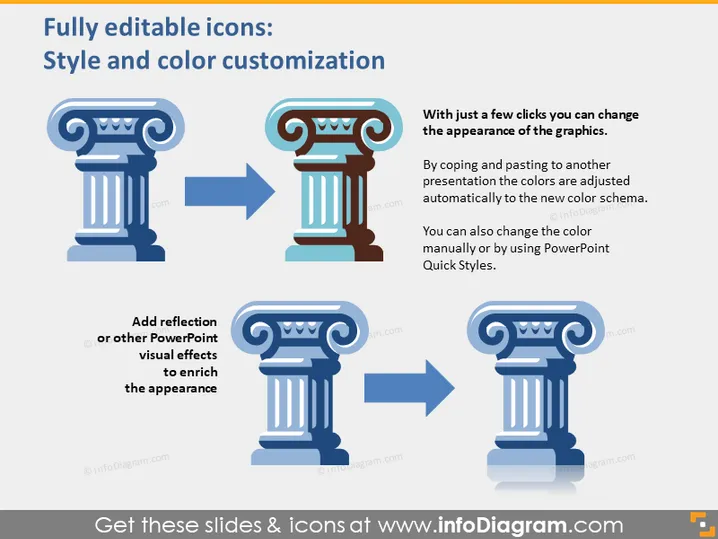
Fully editable icons: Style and color customization
Slide Content
The slide is a demonstration of how icons can be fully edited in terms of style and color customization. It shows two examples of an icon: one is a classic column, and the second shows the same column with color changes and a reflection effect. The text explains that with a few clicks, the appearance of the graphics can be changed, including an automatic adjustment of colors to a new color scheme when copied into a different presentation, or manual color changes using PowerPoint Quick Styles.
Graphical Look
- Two large icons representing classic architectural columns.
- On the left, the original column icon is in a monochromatic blue shade.
- On the right, the transformed column icon displays multiple colors and a reflection effect.
- Arrows pointing from the original to the modified icons, indicating the process of customization.
- Descriptive text boxes accompanying each icon, explaining the changes made.
- The visual composition includes contrasting colors to clearly differentiate between the original and edited versions.
The slide has a clean, professional look with a straightforward contrast between the original and customized icon. The use of arrows creates a flow that guides the viewer through the customization process.
Use Cases
- Demonstrating icon customization capabilities in a software training session for PowerPoint users.
- Presenting the flexibility of branding materials in a marketing meeting.
- Highlighting the features of a graphic design tool in a sales pitch.
- Showcasing the simplicity of adapting presentation aids to match company color schemes during a corporate design workshop.
How to Edit
How to edit text & colors

How to expand / shorten diagram

How to Replace Icons in infoDiagram PPT


