
Reviews
Ihre Grafiken verleihen meinen Präsentationen eine nette Note, und ich habe sie kürzlich für eines meiner All-Hands-Meetings verwendet. Ihre Toolbox verleiht meinen Folien Professionalität, anstatt Standard-Clipart zu verwenden.
Ich brauchte einen neuen Blick auf einige meiner Folien. Ich habe versucht, einen Weg zu finden, einen Pinselschlag-Effekt zu erzielen, um zu unterstreichen, hervorzuheben, Farbe hinzuzufügen, und die handgeschriebenen Markierungen waren genau das Richtige. Sehr einfach zu bedienen, leicht in der Größe zu ändern, die Farbe zu ändern. Es war eine erschwingliche, perfekte Lösung und ich empfehle sie gerne weiter.
Die klare, saubere Optik der Grafiken und die Tatsache, dass ich die Farben leicht bearbeiten und an die Vorlage anpassen konnte, war mein Hauptgrund für den Kauf.
Description
Projects Status Table with OK/Not OK/Warning Sign
Slide Content
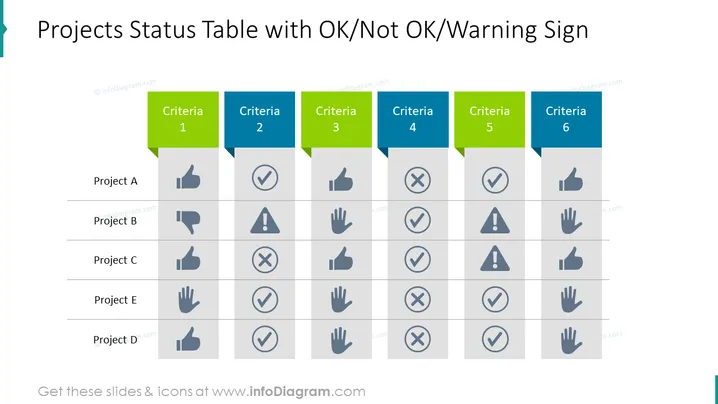
The slide presents a matrix titled "Projects Status Table with OK/Not OK/Warning Sign," which is designed to assess multiple projects against six different criteria. Each project row (Project A, B, C, E, D) is evaluated with a thumbs-up (OK), an exclamation mark in a triangle (Warning), or a cross (Not OK) against each criterion. This visual coding provides a quick overview of the project statuses, with thumbs-up possibly indicating satisfactory performance, warning signs suggesting attention needed, and crosses potentially indicating unsatisfactory performance.
Graphical Look
- The title in bold, large font at the top of the slide.
- A rectangular table with six columns and five rows below the title.
- Table columns are alternately colored in blue and green, each labeled "Criteria" followed by a number from 1 to 6.
- Rows are labeled "Project A" through "Project E," with "Project D" being the last.
- Inside each cell, one of three icons are used: a thumbs-up sign, an exclamation mark in a triangle, or a cross.
- The icons are in a shade of gray, providing a visual contrast against the white background of the cells.
The overall look is clean and professional, with a straightforward table format that allows for easy comparison across projects and criteria. The color-coding and icons are designed to direct viewers' attention effectively towards quick assessments of project status.
Use Cases
- To provide an at-a-glance status update on multiple projects during team meetings or management reviews.
- For inclusion in project dashboard presentations to highlight areas that are on track, at risk, or require immediate attention.
- Within program management updates to communicate the health of various initiatives to stakeholders.
- As part of a project portfolio review, to facilitate decision-making about project prioritization, resource allocation, or intervention strategies.
How to Edit
How to edit text & colors

How to expand / shorten diagram

How to Replace Icons in infoDiagram PPT


