
Reviews
Your graphics add a nice touch to my presentations and I recently used them for one of my all-hands meetings. Your toolbox adds professionalism to my slides. Instead of using standard clipart.
I needed a fresh look at some of my slides. I've tried to find a way to create a paintbrush effect, to underline, accentuate, add some color and the handwritten markers were just the things. Very easy to use, easy to size, change the color. It was an affordable, perfect solution and I'm happy to recommend it.
The crisp, clean look of the graphics, and the fact that it allowed me to easily edit and change the colors to match the template was my main reason for purchasing them.
Description
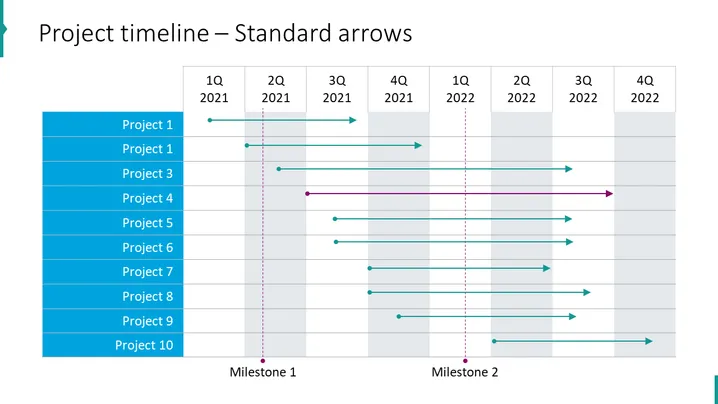
Project timeline – Standard arrows
Slide Content
This PowerPoint slide titled "Project timeline – Standard arrows" is designed to illustrate the timelines of different projects over two years, particularly focusing on their start and end points as well as key milestones. Projects 1 to 10 are listed on the left side, each with a distinct horizontal arrow pointing toward their respective end dates. Two vertical dotted lines marked "Milestone 1" and "Milestone 2" intersect these timelines, indicating significant points within the project schedules.
Graphical Look
- The slide has a clean, professional design with a white background.
- A bold header in dark blue color presents the slide title in a large font.
- A series of staggered blue bars on the left side list the project names (with a repetition of "Project 1", which likely indicates a typo).
- Quarters of the years 2021 and 2022 are labeled at the top in a grey grid-like table.
- Horizontal arrows in various shades of blue and one in purple extend from the project names and indicate the duration of each.
- Cylindrical markers are used to denote starting points and arrowheads for ending points.
- Two vertical dotted lines in pink represent milestones across the timeline.
The slide has a structured and straightforward visual layout with a clear color-coding system for easy interpretation of information.
Use Cases
- To outline the planned or actual timelines of multiple projects in a portfolio during management meetings.
- For visual tracking of project progress in status update presentations to stakeholders or team members.
- As a tool for project managers and planners to communicate important phases and deadlines in a visual format.
- In workshops or planning sessions to align team members on upcoming key dates and deliverables for various projects.
How to Edit
How to edit text & colors

How to expand / shorten diagram

How to Replace Icons in infoDiagram PPT


