

Your graphics add a nice touch to my presentations and I recently used them for one of my all-hands meetings. Your toolbox adds professionalism to my slides. Instead of using standard clipart.
Claude Jones, Director of Engineer, @Walmartlabs, USA

Your graphics add a nice touch to my presentations and I recently used them for one of my all-hands meetings. Your toolbox adds professionalism to my slides. Instead of using standard clipart.
Claude Jones, Director of Engineer, @Walmartlabs, USA
I needed a fresh look at some of my slides. I've tried to find a way to create a paintbrush effect, to underline, accentuate, add some color and the handwritten markers were just the things. Very easy to use, easy to size, change the color. It was an affordable, perfect solution and I'm happy to recommend it.
Anonymous, US
The crisp, clean look of the graphics, and the fact that it allowed me to easily edit and change the colors to match the template was my main reason for purchasing them.
Brandie Jenkins, E-learning Developer, USA
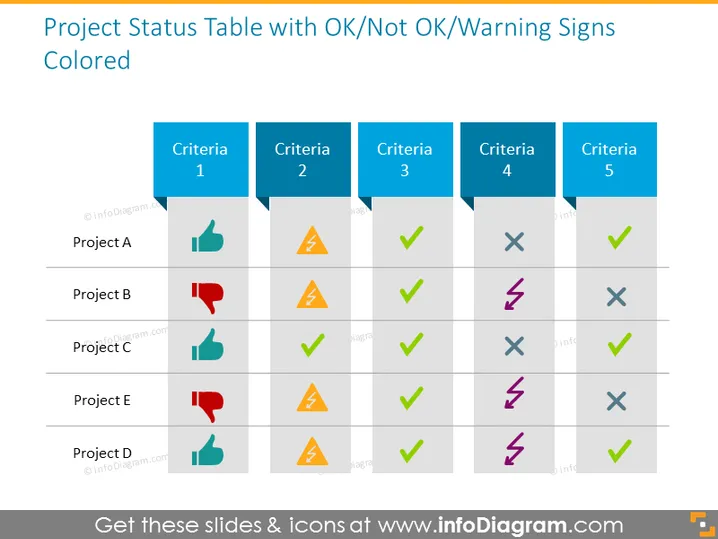
The slide presents a "Project Status Table with OK/Not OK/Warning Signs Colored" that displays the status of various projects across five different criteria. Each row represents a different project, identified as Project A, B, C, E, and D. The criteria are assessed using colored symbols: a green check for OK, an orange warning sign for caution, a red thumb down for Not OK, and a purple cross for something that is significantly wrong. This provides a clear and immediate visual representation of where each project stands for each criterion.
The slide has a structured and professional design, using color-coded icons to effectively convey project statuses. The use of distinct colors and clear symbols provides an at-a-glance overview of performance or issues.



