
Reviews
Your graphics add a nice touch to my presentations and I recently used them for one of my all-hands meetings. Your toolbox adds professionalism to my slides. Instead of using standard clipart.
I needed a fresh look at some of my slides. I've tried to find a way to create a paintbrush effect, to underline, accentuate, add some color and the handwritten markers were just the things. Very easy to use, easy to size, change the color. It was an affordable, perfect solution and I'm happy to recommend it.
The crisp, clean look of the graphics, and the fact that it allowed me to easily edit and change the colors to match the template was my main reason for purchasing them.
Description
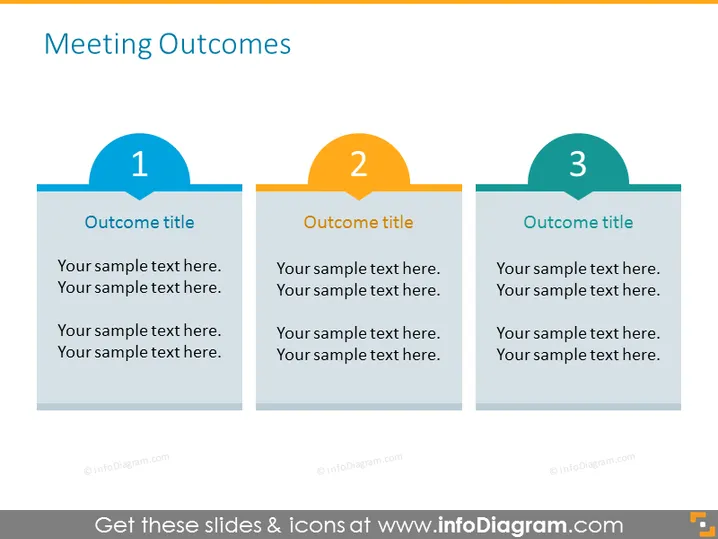
Meeting Outcomes
Slide Content
This PowerPoint slide titled "Meeting Outcomes" presents a structured format for outlining the results of a meeting by breaking it down into three distinct sections, each indicated by a numerical icon (1, 2, 3), a space for an outcome title, and multiple lines for descriptive text. The use of numbers suggests a sequence or priority, and the space provided offers room for a detailed explanation of each outcome, including decisions made, actions to be taken, or any conclusions drawn from the discussion.
Graphical Look
- The slide has a blue background with a brighter blue horizontal band near the top.
- It contains three large, colored numerical icons: 1 is blue, 2 is orange, and 3 is green.
- Below each number, there is a dark gray rectangular shape designated for the "Outcome title."
- Four lines of placeholder text for descriptions under each outcome title box represent the sample content that can be replaced with actual information.
- Each set of icons, title, and text is contained in its own section, visually separated from the others by spacing.
- The font used for text appears to be a sans-serif type, enhancing readability.
The slide has a clean, professional appearance with a color-coordinated design that effectively segments information. The use of large, bold numbers helps to attract attention to each section and allows for a clear flow of information.
Use Cases
- To summarize the key points decided upon during a meeting for a clear communication with stakeholders.
- To provide a progress update during a team briefing, highlighting major achievements or milestones.
- To define action items during a project review, delineating responsibilities and next steps for team members.
- To present the outcomes of a workshop or training session, outlining learned concepts and future applications.
How to Edit
How to edit text & colors

How to expand / shorten diagram

How to Replace Icons in infoDiagram PPT


