

Your graphics add a nice touch to my presentations and I recently used them for one of my all-hands meetings. Your toolbox adds professionalism to my slides. Instead of using standard clipart.
Claude Jones, Director of Engineer, @Walmartlabs, USA

Your graphics add a nice touch to my presentations and I recently used them for one of my all-hands meetings. Your toolbox adds professionalism to my slides. Instead of using standard clipart.
Claude Jones, Director of Engineer, @Walmartlabs, USA
I needed a fresh look at some of my slides. I've tried to find a way to create a paintbrush effect, to underline, accentuate, add some color and the handwritten markers were just the things. Very easy to use, easy to size, change the color. It was an affordable, perfect solution and I'm happy to recommend it.
Anonymous, US
The crisp, clean look of the graphics, and the fact that it allowed me to easily edit and change the colors to match the template was my main reason for purchasing them.
Brandie Jenkins, E-learning Developer, USA
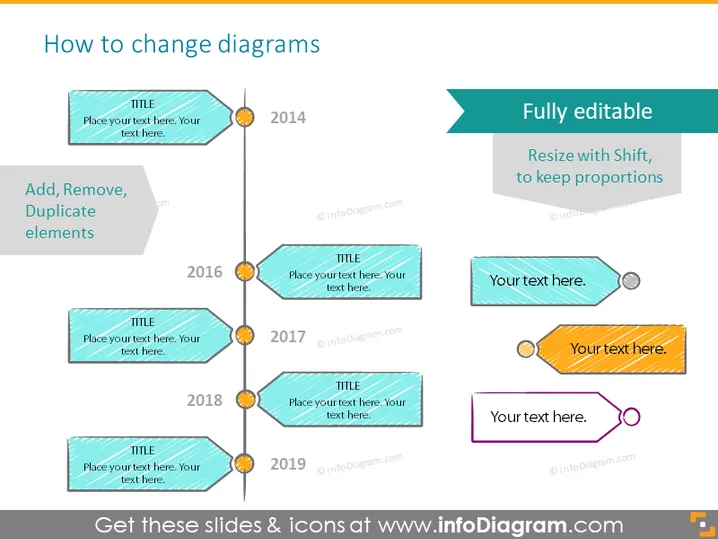
The PowerPoint slide titled "How to change diagrams" instructs on modifying diagram elements and highlights the ease of customization. It outlines simple procedures like adding, removing, and duplicating elements within a diagram, which are essential skills for shaping presentations to fit specific requirements. The slide emphasizes that the components are fully editable, with suggestions to resize while holding the Shift key to maintain element proportions. Each instruction is exemplified through a sequential timeline of years, indicating the ongoing nature of updates and modifications over time.
The overall look of the slide is clean and modern, with a vibrant color palette designed to capture attention. The timeline and corresponding text boxes create a clear visual path, guiding the viewer through the sequence of actions related to customizing diagrams.



