

Your graphics add a nice touch to my presentations and I recently used them for one of my all-hands meetings. Your toolbox adds professionalism to my slides. Instead of using standard clipart.
Claude Jones, Director of Engineer, @Walmartlabs, USA

Your graphics add a nice touch to my presentations and I recently used them for one of my all-hands meetings. Your toolbox adds professionalism to my slides. Instead of using standard clipart.
Claude Jones, Director of Engineer, @Walmartlabs, USA
I needed a fresh look at some of my slides. I've tried to find a way to create a paintbrush effect, to underline, accentuate, add some color and the handwritten markers were just the things. Very easy to use, easy to size, change the color. It was an affordable, perfect solution and I'm happy to recommend it.
Anonymous, US
The crisp, clean look of the graphics, and the fact that it allowed me to easily edit and change the colors to match the template was my main reason for purchasing them.
Brandie Jenkins, E-learning Developer, USA
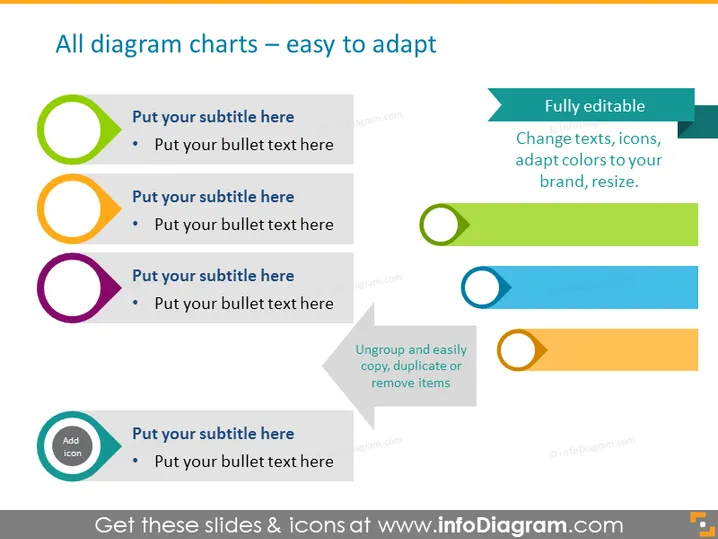
The PowerPoint slide presents a template titled "All diagram charts – easy to adapt," indicating that it's a customizable diagram template. The slide consists of five separate elements, each with a colored circle followed by a placeholder text for a subtitle and a bulleted text. This customizable layout is aimed to help users easily insert and present their own points in a structured manner. Each circle could represent a different topic or a step in a process, with the accompanying text providing the detail or explanation for that item.
The slide is visually balanced with a clean and professional design, featuring a harmonious color palette and straightforward graphics. It's simple yet effective use of circles and text makes it instantly clear that the slide is meant for customization and adaptability within various presentation contexts.



