

Your graphics add a nice touch to my presentations and I recently used them for one of my all-hands meetings. Your toolbox adds professionalism to my slides. Instead of using standard clipart.
Claude Jones, Director of Engineer, @Walmartlabs, USA

Your graphics add a nice touch to my presentations and I recently used them for one of my all-hands meetings. Your toolbox adds professionalism to my slides. Instead of using standard clipart.
Claude Jones, Director of Engineer, @Walmartlabs, USA
I needed a fresh look at some of my slides. I've tried to find a way to create a paintbrush effect, to underline, accentuate, add some color and the handwritten markers were just the things. Very easy to use, easy to size, change the color. It was an affordable, perfect solution and I'm happy to recommend it.
Anonymous, US
The crisp, clean look of the graphics, and the fact that it allowed me to easily edit and change the colors to match the template was my main reason for purchasing them.
Brandie Jenkins, E-learning Developer, USA
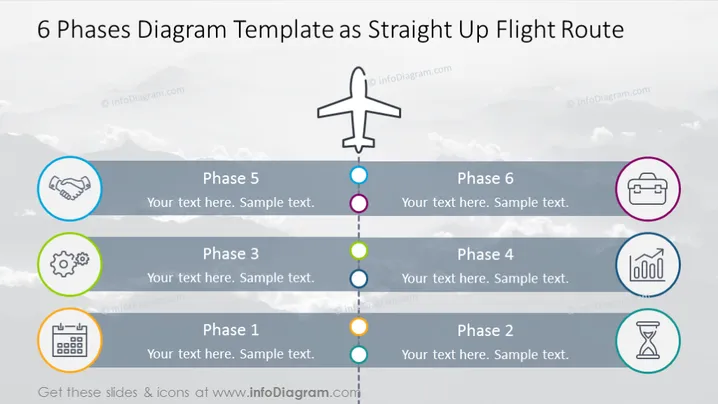
The slide presents a structured format for illustrating a process that consists of 6 distinct phases outlined as a flight route. Phase 1 includes a calendar icon, signifying planning or scheduling; Phase 2 uses an hourglass icon to denote a period of waiting or a process in progress; Phase 3 features a gear icon, possibly indicating a phase of work or development; Phase 4 with a factory icon, may represent production or operational phase; Phase 5 shows a handshake icon, suggesting negotiation or agreement; and Phase 6 has a suitcase icon which could imply completion or deployment.
The overall visual impression of the slide is a clear and organized layout that promotes ease of understanding a step-by-step process. The use of icons and colors helps to differentiate and emphasize each phase of the process.



