
Reviews
Ihre Grafiken verleihen meinen Präsentationen eine nette Note, und ich habe sie kürzlich für eines meiner All-Hands-Meetings verwendet. Ihre Toolbox verleiht meinen Folien Professionalität, anstatt Standard-Clipart zu verwenden.
Ich brauchte einen neuen Blick auf einige meiner Folien. Ich habe versucht, einen Weg zu finden, einen Pinselschlag-Effekt zu erzielen, um zu unterstreichen, hervorzuheben, Farbe hinzuzufügen, und die handgeschriebenen Markierungen waren genau das Richtige. Sehr einfach zu bedienen, leicht in der Größe zu ändern, die Farbe zu ändern. Es war eine erschwingliche, perfekte Lösung und ich empfehle sie gerne weiter.
Die klare, saubere Optik der Grafiken und die Tatsache, dass ich die Farben leicht bearbeiten und an die Vorlage anpassen konnte, war mein Hauptgrund für den Kauf.
Description
Pivoting Rotation - OLAP Operation Explanation Template
Slide Content
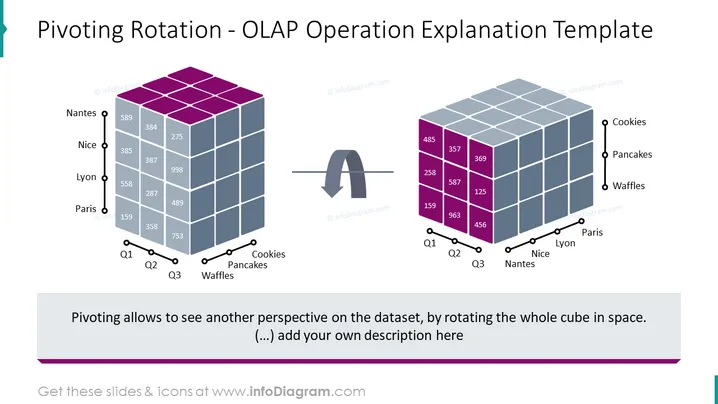
The slide titled "Pivoting Rotation - OLAP Operation Explanation Template" demonstrates the concept of pivoting rotation in the context of an OLAP (Online Analytical Processing) operation. It visually represents a 3D data cube before and after a pivoting action. Prior to the pivot, data is arranged by cities (Nantes, Nice, Lyon, Paris) along one axis, and product types (Cookies, Pancakes, Waffles) along another axis, with sales numbers for Q1, Q2, and Q3 shown on the cube's faces. Post-pivoting, the cube's orientation has changed to show the product types as the primary axis, allowing a different perspective on the dataset, which can be helpful in analyzing data from different angles.
Graphical Look
- A 3D data cube is placed on the left side of the slide, with purple on the top face and shades of blue on the other visible faces.
- Numeric values are displayed on the faces of the 3D cube, corresponding to different cities and quarters.
- To the right of the first cube, there is a curved double-sided arrow pointing towards a second 3D data cube, indicating the action of pivoting or rotating the data.
- The second 3D data cube also has purple on the top and shades of blue on the sides, with cities and quarters positioned differently due to rotation.
- Underneath the second cube, another set of numeric values is displayed, now showing a different perspective after pivoting.
- The background of the slide is white, and there's a text box at the bottom with a placeholder to "add your own description here."
The slide features a clean and professional design with a clear visual contrast between the 'before' and 'after' states of the data cube. It effectively uses color coding and positioning to articulate the concept of pivoting within an OLAP system.
Use Cases
- To illustrate the concept of pivot operations during data analysis or business intelligence training sessions.
- In a presentation to explain how different views of data can impact decision-making in business scenarios.
- As part of a sales performance analysis where the rotation can reveal trends and patterns by product line or geographic location.
- To demonstrate the before and after results of a pivot in a software tool during a product demo or tutorial.
How to Edit
How to edit text & colors

How to expand / shorten diagram

How to Replace Icons in infoDiagram PPT


