
Reviews
Ihre Grafiken verleihen meinen Präsentationen eine nette Note, und ich habe sie kürzlich für eines meiner All-Hands-Meetings verwendet. Ihre Toolbox verleiht meinen Folien Professionalität, anstatt Standard-Clipart zu verwenden.
Ich brauchte einen neuen Blick auf einige meiner Folien. Ich habe versucht, einen Weg zu finden, einen Pinselschlag-Effekt zu erzielen, um zu unterstreichen, hervorzuheben, Farbe hinzuzufügen, und die handgeschriebenen Markierungen waren genau das Richtige. Sehr einfach zu bedienen, leicht in der Größe zu ändern, die Farbe zu ändern. Es war eine erschwingliche, perfekte Lösung und ich empfehle sie gerne weiter.
Die klare, saubere Optik der Grafiken und die Tatsache, dass ich die Farben leicht bearbeiten und an die Vorlage anpassen konnte, war mein Hauptgrund für den Kauf.
Description
Editing Flat Icons & Shapes in PowerPoint
Slide Content
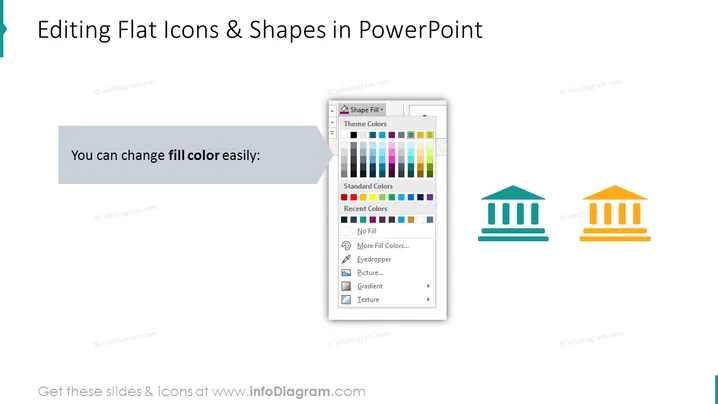
The slide is focused on demonstrating the ease of changing the fill color of flat icons and shapes within PowerPoint. It features a singular instructional text stating "You can change fill color easily:" which implies that the process is straightforward. Accompanying the text is a graphical representation of the PowerPoint interface showing a color selection tool, indicating the diverse color customization options available to users. Two icons, a bank and a building, are shown with color variations, further exemplifying the application of this feature.
Graphical Look
- The slide has a large title at the top in bold, dark text.
- A light blue decorative bracket initiates from the left edge.
- A gray text box contains the instructional text in white font with a drop shadow effect.
- A graphical representation of a color selection tool from PowerPoint is displayed, featuring theme colors, standard colors, and more.
- The right side of the slide exhibits two flat icons - a blue bank and an orange building with pillars - demonstrating the fill color change effect.
- The background of the slide is white, providing a stark contrast to the colorful elements.
The slide sports a clean and modern look with a balanced mixture of text, colors, and icons. The use of contrasting colors and flat design enhances readability and facilitates understanding of the content.
Use Cases
- To instruct users on the basics of customizing slide content in a PowerPoint training session.
- During a design-focused meeting to demonstrate how branding colors can be applied to presentation elements.
- In a marketing strategy presentation to show how visual elements can be tailored to match campaign themes.
- As part of a template customization guide for a team to maintain consistency in corporate presentations.
How to Edit
How to edit text & colors

How to expand / shorten diagram

How to Replace Icons in infoDiagram PPT


