
Reviews
Your graphics add a nice touch to my presentations and I recently used them for one of my all-hands meetings. Your toolbox adds professionalism to my slides. Instead of using standard clipart.
I needed a fresh look at some of my slides. I've tried to find a way to create a paintbrush effect, to underline, accentuate, add some color and the handwritten markers were just the things. Very easy to use, easy to size, change the color. It was an affordable, perfect solution and I'm happy to recommend it.
The crisp, clean look of the graphics, and the fact that it allowed me to easily edit and change the colors to match the template was my main reason for purchasing them.
Description
Pillars Diagram with 2 Column Comparison
Slide Content
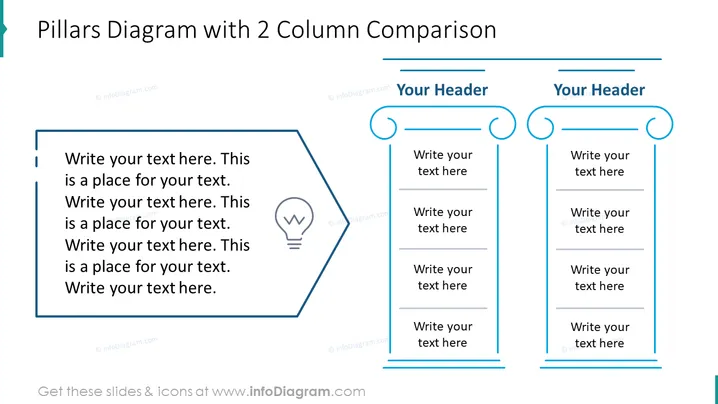
The slide presents a "Pillars Diagram with 2 Column Comparison" design used for contrasting two sets of ideas or concepts. The left section contains a large hexagon with bullet points and a lightbulb icon indicating a specific idea or innovation. The right side of the slide has two vertical columns, each topped with a space for a header, and multiple lines for text or bullet points suggesting a detailed comparison or list of features pertaining to the two different concepts or topics.
Graphical Look
- The slide background is white, providing a clear and uncluttered canvas.
- A bold title "Pillars Diagram with 2 Column Comparison" is placed at the top of the slide.
- There are two main graphical elements separated by a vertical space:
- On the left, a large light blue hexagon with a lightbulb icon inside it, next to which are bullet point lines for text.
- On the right, two upright, rectangular pillars with curved tops, each accompanied by a title placeholder and several lines for additional text.
- The color theme is a combination of light blue and dark gray, providing a professional look.
- Each column and the hexagon are accented with a darker outline, enhancing their visual prominence.
The overall look of the slide is clean and professional with a balanced use of space and a clear distinction between the two columns for comparison.
Use Cases
- Presenting the pros and cons of two different strategies or solutions in a business meeting.
- Comparing product features or services in a sales presentation to potential clients.
- Illustrating two alternative approaches or ideas in an educational or training session.
- Summarizing the outcomes of two different scenarios in a management or team briefing.
How to Edit
How to edit text & colors

How to expand / shorten diagram

How to Replace Icons in infoDiagram PPT


