
Reviews
Ihre Grafiken verleihen meinen Präsentationen eine nette Note, und ich habe sie kürzlich für eines meiner All-Hands-Meetings verwendet. Ihre Toolbox verleiht meinen Folien Professionalität, anstatt Standard-Clipart zu verwenden.
Ich brauchte einen neuen Blick auf einige meiner Folien. Ich habe versucht, einen Weg zu finden, einen Pinselschlag-Effekt zu erzielen, um zu unterstreichen, hervorzuheben, Farbe hinzuzufügen, und die handgeschriebenen Markierungen waren genau das Richtige. Sehr einfach zu bedienen, leicht in der Größe zu ändern, die Farbe zu ändern. Es war eine erschwingliche, perfekte Lösung und ich empfehle sie gerne weiter.
Die klare, saubere Optik der Grafiken und die Tatsache, dass ich die Farben leicht bearbeiten und an die Vorlage anpassen konnte, war mein Hauptgrund für den Kauf.
Description
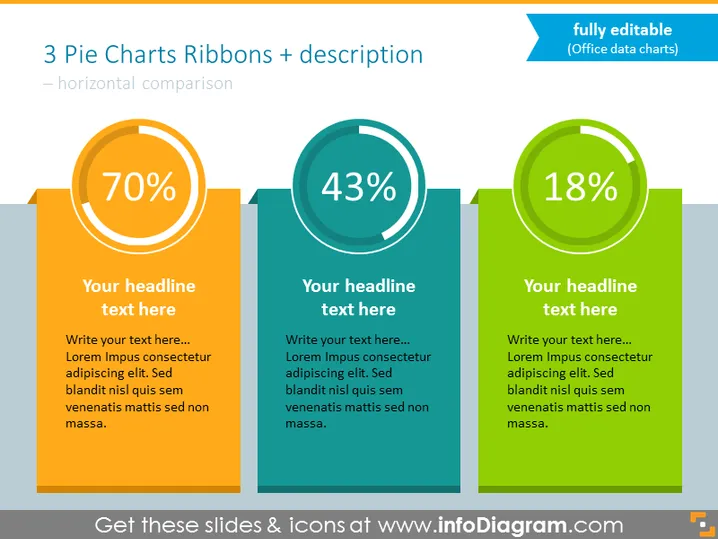
3 Pie Charts Ribbons + description
Slide Content
The slide presents a comparison between three different data points using pie charts, each with a corresponding ribbon shape and descriptive text. The first pie chart shows a 70% data point, suggesting a significant portion of an entity or metric. The second chart displays a 43% figure, indicating a smaller segment relative to the first. The third chart has an 18% data point, highlighting the smallest share among the compared elements. Below each pie chart is a placeholder for a headline and additional text for a more detailed explanation.
Graphical Look
- Three large pie chart graphics aligned horizontally, each illustrating a percentage with a bold number and encircled by a colored ring.
- Each pie chart is a different color: orange for 70%, teal for 43%, and green for 18%.
- A large ribbon shape emerges behind each pie chart, matching the colors of the pie charts and providing space for text.
- Placeholder text boxes for a headline and description are positioned below each chart.
- The overall design is bold and colorful with a strong contrast that makes the charts stand out.
The overall look of the slide is modern and engaging, with a clean layout that directs attention to the key data points highlighted by the vibrant pie charts and their accompanying ribbons.
Use Cases
- Presenting key performance indicators (KPIs) in business reviews or team meetings to compare metrics such as market share, customer satisfaction, or departmental performance.
- Visualizing and comparing research data results in academic or market research presentations, where visual appeal can enhance audience engagement and understanding.
- Showing progress on different project milestones in project management updates, where each portion represents the completion status of a particular phase.
- Comparing product sales, market penetration, or demographic segments in sales and marketing presentations, offering an instant visual comparison of important statistics.
How to Edit
How to edit text & colors

How to expand / shorten diagram

How to Replace Icons in infoDiagram PPT


