

Your graphics add a nice touch to my presentations and I recently used them for one of my all-hands meetings. Your toolbox adds professionalism to my slides. Instead of using standard clipart.
Claude Jones, Director of Engineer, @Walmartlabs, USA

Your graphics add a nice touch to my presentations and I recently used them for one of my all-hands meetings. Your toolbox adds professionalism to my slides. Instead of using standard clipart.
Claude Jones, Director of Engineer, @Walmartlabs, USA
I needed a fresh look at some of my slides. I've tried to find a way to create a paintbrush effect, to underline, accentuate, add some color and the handwritten markers were just the things. Very easy to use, easy to size, change the color. It was an affordable, perfect solution and I'm happy to recommend it.
Anonymous, US
The crisp, clean look of the graphics, and the fact that it allowed me to easily edit and change the colors to match the template was my main reason for purchasing them.
Brandie Jenkins, E-learning Developer, USA
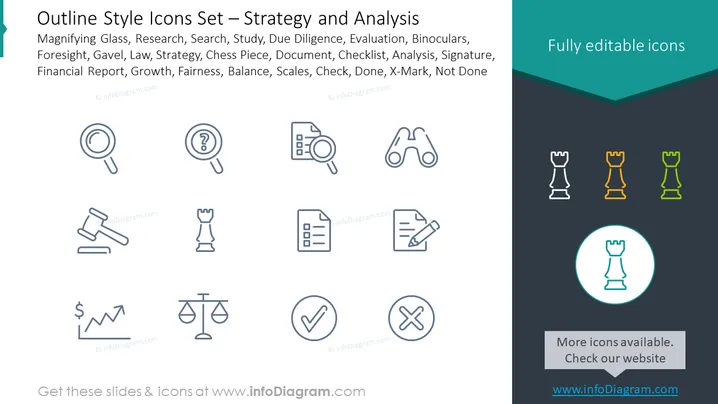
This PowerPoint slide appears to be a sample from a set of outline style icons designed for presentations concerning strategy and analysis. It includes icons that symbolize a variety of concepts related to research, legal issues, decision making, and business analysis. Specifically, it displays icons for Magnifying Glass (symbolizing search or scrutiny), Research, Study, Due Diligence (the care that a reasonable person exercises to avoid harm), Evaluation, Binoculars (foresight or looking ahead), Gavel (law or authority), Law, Strategy, Chess Piece (tactical planning), Document, Checklist (organizational tasks), Analysis, Signature (agreement or commitment), Financial Report, Growth, Fairness, Balance (equilibrium or justice), Scales (measuring or weighing options), Check (confirmation), Done, X-Mark (negation or incorrect), and Not Done (task pending or incomplete).
The overall look of the slide is minimalistic and professional, with a clear focus on the icons which are used to represent various strategic and analytical concepts. The use of color highlights some icons to demonstrate customization options while maintaining an overall cohesive style.



