
Reviews
Ihre Grafiken verleihen meinen Präsentationen eine nette Note, und ich habe sie kürzlich für eines meiner All-Hands-Meetings verwendet. Ihre Toolbox verleiht meinen Folien Professionalität, anstatt Standard-Clipart zu verwenden.
Ich brauchte einen neuen Blick auf einige meiner Folien. Ich habe versucht, einen Weg zu finden, einen Pinselschlag-Effekt zu erzielen, um zu unterstreichen, hervorzuheben, Farbe hinzuzufügen, und die handgeschriebenen Markierungen waren genau das Richtige. Sehr einfach zu bedienen, leicht in der Größe zu ändern, die Farbe zu ändern. Es war eine erschwingliche, perfekte Lösung und ich empfehle sie gerne weiter.
Die klare, saubere Optik der Grafiken und die Tatsache, dass ich die Farben leicht bearbeiten und an die Vorlage anpassen konnte, war mein Hauptgrund für den Kauf.
Description
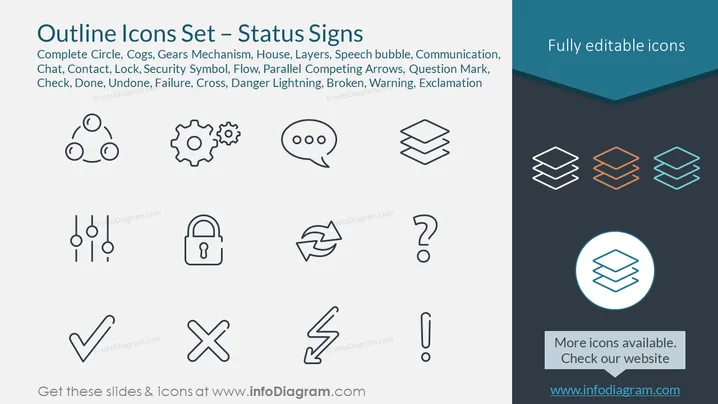
Outline Icons Set – Status Signs
Slide Content
This PowerPoint slide is titled "Outline Icons Set – Status Signs" and showcases a series of line art icons that represent various status symbols. These include a complete circle, cogs and gears mechanism, suggesting interconnectivity or processes; a house icon, typically symbolizing home status or real estate; layers, often representing organization levels or software; a chat bubble indicating communication; a phone contact icon, a lock for security; flow arrows for direction or progress; a question mark for queries or unknowns; a checkmark for completion or approval; a cross for error or denial; a lightning bolt for danger or electricity; a broken line symbolizing disruption; and an exclamation mark for attention or warning. Each icon conveys a specific status or action and can be used to enhance visual communication in presentations.
Graphical Look
- The slide has a dark blue header at the top with white text for the title.
- In the upper-right corner of the slide, there is a smaller text box with a phrase "Fully editable icons" in white against a slightly angled dark blue background.
- A variety of thin line icons are neatly arrayed in rows and columns across the slide.
- Each icon is black and enclosed with sufficient white space, which makes them stand out against the light blue background of the slide.
- One of the icons at the bottom-right, representing stacked layers, is highlighted with a blue circle and appears in color rather than black, drawing attention to it.
- A subtle shadow effect is applied to the icons, giving them a slight three-dimensional look.
The slide's overall look is clean and professional, with a cool color palette of blues that suggest technology or corporate themes. The icons are simple and modern, effectively conveying various statuses or concepts without the need for text.
Use Cases
- To visually enhance sections in business presentations that discuss different statuses of projects or tasks.
- As part of an infographic slide, where each icon can represent a specific data point, process, or result in a visually appealing manner.
- In user interface (UI) design or web design presentations, to demonstrate icon possibilities for different functionalities or notifications.
- In training materials, where icons can visually represent steps or statuses, making the content easier to understand and remember.
How to Edit
How to edit text & colors

How to expand / shorten diagram

How to Replace Icons in infoDiagram PPT


