
Reviews
Sus gráficos añaden un toque agradable a mis presentaciones y recientemente los usé para una de mis reuniones generales. Su conjunto de herramientas añade profesionalismo a mis diapositivas. En lugar de usar imágenes prediseñadas estándar.
Necesitaba un aspecto fresco para algunas de mis diapositivas. Había intentado encontrar una forma de crear un efecto de pincel, de subrayar, acentuar, añadir algo de color y los marcadores escritos a mano fueron justo lo que necesitaba. Muy fácil de usar, fácil de ajustar el tamaño, cambiar el color. Fue una solución asequible y perfecta, y estoy feliz de recomendarla.
El aspecto nítido y limpio de los gráficos, y el hecho de que me permitiera editar y cambiar fácilmente los colores para que coincidieran con la plantilla fue mi principal razón para comprarlos.
Description
Usage Example
Slide Content
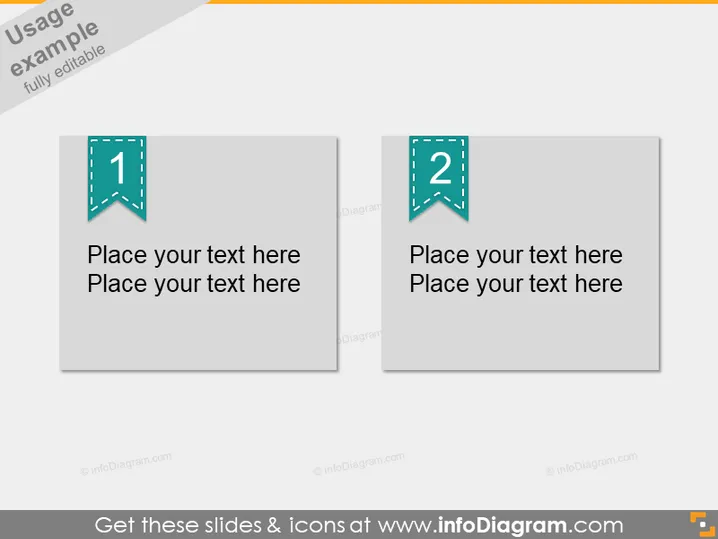
The PowerPoint slide shows a two-part comparison template, which is ideal for contrasting two ideas, concepts, or groups of information. Each section has a prominent numerical marker, with '1' on the left and '2' on the right, suggesting a step-by-step or comparative format. The template prompts users to "Place your text here," indicating a customizable layout for personalized content. Explaining further, these markers help to guide the audience through the content sequentially or draw attention to parallel elements in a presentation.
Graphical Look
- Two rectangular blocks serve as content placeholders, one with the number '1' and the other with the number '2'.
- Each block features a wide, subtle shadow, giving it a slightly 3D effect on the slide background.
- The numbers are encapsulated in dashed-line bordered ribbon banners that match the color scheme, which are teal.
- The banners have a fold-over effect at the bottom, resembling bookmarks or tags, contributing to a theme of organization or prioritization.
- Gray text placeholders inside each block suggest customizable fields for entering related content for each numbered section.
- The blocks are arranged side-by-side, indicating a clear visual comparison or progression.
The overall look is clean and structured, with a professional color palette that can fit a variety of presentation contexts. The use of space and shadowing provides a sense of depth without detracting from the content focus.
Use Cases
- To compare and contrast two separate but related ideas, strategies, or products during a business meeting or marketing presentation.
- To outline two sequential steps in a process or two key points in an argument in a training or educational session.
- To highlight two options or decision points in a project proposal or executive summary.
- To showcase before-and-after scenarios in a case study or report on outcomes and impact on business projects.
How to Edit
How to edit text & colors

How to expand / shorten diagram

How to Replace Icons in infoDiagram PPT


