
Reviews
Your graphics add a nice touch to my presentations and I recently used them for one of my all-hands meetings. Your toolbox adds professionalism to my slides. Instead of using standard clipart.
I needed a fresh look at some of my slides. I've tried to find a way to create a paintbrush effect, to underline, accentuate, add some color and the handwritten markers were just the things. Very easy to use, easy to size, change the color. It was an affordable, perfect solution and I'm happy to recommend it.
The crisp, clean look of the graphics, and the fact that it allowed me to easily edit and change the colors to match the template was my main reason for purchasing them.
Description
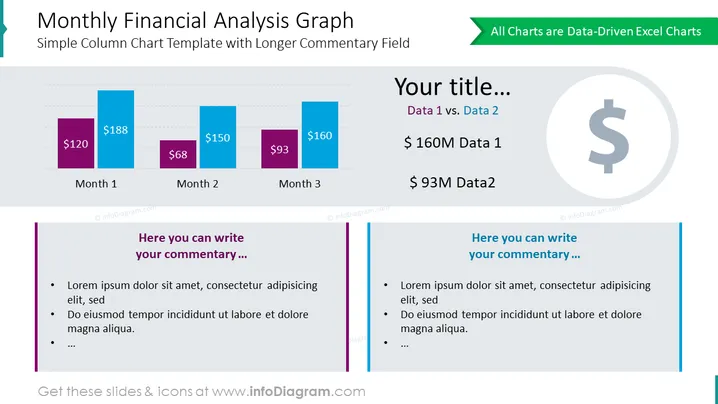
Monthly Financial Analysis Graph
Slide Content
The slide titled "Monthly Financial Analysis Graph" presents a simple column chart template designed for displaying financial data across three months. It features two columns for each month, each column indicating the respective monetary values, thus facilitating a comparison between two different sets of data. The text placeholders labeled "Your title...", "Data 1 vs. Data 2" and "Here you can write your commentary..." suggest where presenters can insert their own titles, data comparisons, and detailed commentary to explain the trends or values depicted in the chart.
Graphical Look
- Two column charts with three pairs of columns, differentiated by color (purple and blue).
- Four text boxes with varying fonts and sizes displaying the title, subtitle, data summaries, and commentary sections.
- A dollar icon inside a faded circle to the right of the slide – representing a financial theme.
- A green banner in the upper right corner indicating the data is editable in Excel.
- Horizontal dashed lines as gridlines to indicate scale on the column charts.
- Two commentary sections with sample bullet points featuring a bold vertical line for separation.
The slide is visually balanced, with a clean and professional design. The use of color helps in differentiating data and the layout is organized to guide the viewer through the slide in a logical manner.
Use Cases
- Presenting monthly revenue or expense data in a business meeting to highlight trends and comparisons.
- Visualizing financial performance over a quarter, during a quarterly business review.
- Illustrating budget variances across different months in a financial planning session.
- Showcasing sales figures or other key performance indicators (KPIs) in a management or stakeholder presentation.
How to Edit
How to edit text & colors

How to expand / shorten diagram

How to Replace Icons in infoDiagram PPT


