
Your graphics add a nice touch to my presentations and I recently used them for one of my all-hands meetings. Your toolbox adds professionalism to my slides. Instead of using standard clipart.
Claude Jones, Director of Engineer, @Walmartlabs, USA

Your graphics add a nice touch to my presentations and I recently used them for one of my all-hands meetings. Your toolbox adds professionalism to my slides. Instead of using standard clipart.
Claude Jones, Director of Engineer, @Walmartlabs, USA

I needed a fresh look at some of my slides. I've tried to find a way to create a paintbrush effect, to underline, accentuate, add some color and the handwritten markers were just the things. Very easy to use, easy to size, change the color. It was an affordable, perfect solution and I'm happy to recommend it.
Anonymous, US
The crisp, clean look of the graphics, and the fact that it allowed me to easily edit and change the colors to match the template was my main reason for purchasing them.
Brandie Jenkins, E-learning Developer, USA
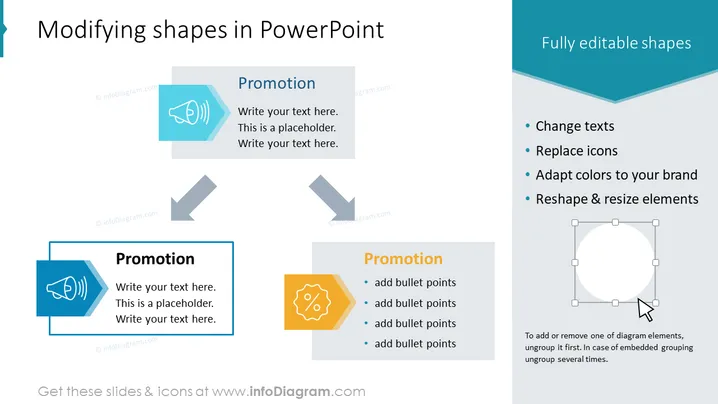
The PowerPoint slide titled "Modifying shapes in PowerPoint" features an instructional topic that delineates how shapes in PowerPoint presentations can be modified. The slide's content is organized into key points with associated icons and example text boxes, explaining the editable nature of PowerPoint shapes. The slide details the ability to change texts, replace icons, adapt colors to your brand, and resize or reshape elements. Each of these four points reveals a fundamental aspect of PowerPoint shape customization, essential for tailoring presentation visuals to specific branding or messaging needs.
The slide sports a clean, professional design with a mix of flat icons and shapes, primarily in shades of blue, gray, and a touch of yellow to draw attention. The layout is well-organized, making the information easily digestible.


