
Reviews
Ihre Grafiken verleihen meinen Präsentationen eine nette Note, und ich habe sie kürzlich für eines meiner All-Hands-Meetings verwendet. Ihre Toolbox verleiht meinen Folien Professionalität, anstatt Standard-Clipart zu verwenden.
Ich brauchte einen neuen Blick auf einige meiner Folien. Ich habe versucht, einen Weg zu finden, einen Pinselschlag-Effekt zu erzielen, um zu unterstreichen, hervorzuheben, Farbe hinzuzufügen, und die handgeschriebenen Markierungen waren genau das Richtige. Sehr einfach zu bedienen, leicht in der Größe zu ändern, die Farbe zu ändern. Es war eine erschwingliche, perfekte Lösung und ich empfehle sie gerne weiter.
Die klare, saubere Optik der Grafiken und die Tatsache, dass ich die Farben leicht bearbeiten und an die Vorlage anpassen konnte, war mein Hauptgrund für den Kauf.
Description
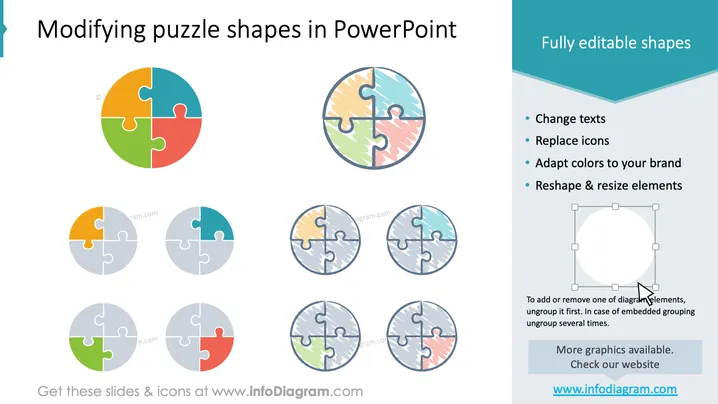
Modifying puzzle shapes in PowerPoint
Slide Content
The slide presents the customizable features of puzzle shapes in PowerPoint. It focuses on the ability to change texts, replace icons, adapt colors to match your brand, and reshape and resize elements. Each feature is essential; changing texts allows for personalization, replacing icons can tailor the diagram to specific themes or messages, adapting colors ensures brand consistency, and reshaping and resizing elements provide flexibility in design.
Graphical Look
- A large title at the top in bold, sans-serif font, "Modifying puzzle shapes in PowerPoint."
- Four puzzle pieces connected in the center, representing a complete puzzle with vibrant colors.
- Six smaller versions of the puzzle, each showing various stages of modification and color adaptations.
- To the right, a bulleted list highlighting key features such as fully editable shapes, and instructions for editing the puzzle elements.
- A simple graphic icon of a mouse cursor clicking on one of the editable elements.
- Light blue background with a decorative dark blue wave design at the top.
The slide has a clean, professional look with a balanced layout that includes both textual information and visual examples. The design is colorful and engaging without being overwhelming.
Use Cases
- Demonstrating the customization options for presentation graphics to a team or during a training session.
- Providing a visual guide on how to edit graphics to match branding needs during a marketing strategy meeting.
- Serving as an example slide in a template showcase for potential customers considering purchasing presentation materials.
- Teaching employees about the versatility and features of presentation software during an onboarding or professional development workshop.
How to Edit
How to edit text & colors

How to expand / shorten diagram

How to Replace Icons in infoDiagram PPT


