
Reviews
Sus gráficos añaden un toque agradable a mis presentaciones y recientemente los usé para una de mis reuniones generales. Su conjunto de herramientas añade profesionalismo a mis diapositivas. En lugar de usar imágenes prediseñadas estándar.
Necesitaba un aspecto fresco para algunas de mis diapositivas. Había intentado encontrar una forma de crear un efecto de pincel, de subrayar, acentuar, añadir algo de color y los marcadores escritos a mano fueron justo lo que necesitaba. Muy fácil de usar, fácil de ajustar el tamaño, cambiar el color. Fue una solución asequible y perfecta, y estoy feliz de recomendarla.
El aspecto nítido y limpio de los gráficos, y el hecho de que me permitiera editar y cambiar fácilmente los colores para que coincidieran con la plantilla fue mi principal razón para comprarlos.
Description
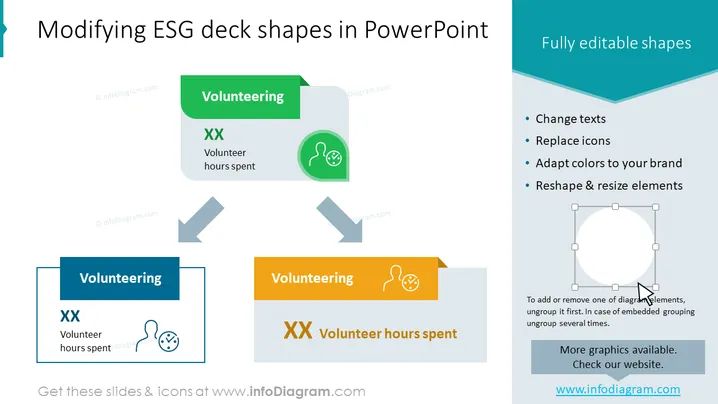
Modifying ESG deck shapes in PowerPoint
Slide Content
The PowerPoint slide demonstrates how to modify ESG (Environmental, Social, Governance) deck shapes. It highlights that the shapes are fully editable, allowing for customization such as changing texts, replacing icons, adapting colors to match a brand, and reshaping & resizing elements. The slide shows three versions of a "Volunteering" theme, representing before and after modification, with placeholders for "XX Volunteer hours spent" and a stylized icon indicating volunteer work.
Graphical Look
- The slide has a clean and professional design predominated by blue, green, and orange colors.
- At the top left, there is a level 2 header in light blue color: "Modifying ESG deck shapes in PowerPoint".
- On the right, a text box with bullet points lists the fully editable features of the shapes, using a light blue background that creates a header look.
- Three rectangular shapes represent the step-by-step modification of a slide component, each labeled with "Volunteering" and featuring a stethoscope-like icon, presumably linked to volunteer work in healthcare.
- Arrows between the rectangle shapes suggest a progression or workflow from the original design (in blue) to the modified versions (in green and orange).
- The slide uses shades, gradient fills, and drop shadows to create depth and emphasize editable areas of the presentation elements.
- An illustration of a white circle with editing handles on the right shows how a shape can be manipulated.
The overall look is modern and instructional, with a focus on conveying the ease of editing presentation components. The chosen colors are vivid and distinct, ensuring that different steps in the process are easily distinguishable.
Use Cases
- Presenting a tutorial on customizing slide designs to adhere to company branding during an internal training session.
- Demonstrating design flexibility to clients or stakeholders when pitching a presentation template.
- Educational materials for teaching best practices in presentation design and layout.
- Showc asing the ease of use of a particular presentation software or template for marketing purposes.
How to Edit
How to edit text & colors

How to expand / shorten diagram

How to Replace Icons in infoDiagram PPT


