
Reviews
Your graphics add a nice touch to my presentations and I recently used them for one of my all-hands meetings. Your toolbox adds professionalism to my slides. Instead of using standard clipart.
I needed a fresh look at some of my slides. I've tried to find a way to create a paintbrush effect, to underline, accentuate, add some color and the handwritten markers were just the things. Very easy to use, easy to size, change the color. It was an affordable, perfect solution and I'm happy to recommend it.
The crisp, clean look of the graphics, and the fact that it allowed me to easily edit and change the colors to match the template was my main reason for purchasing them.
Description
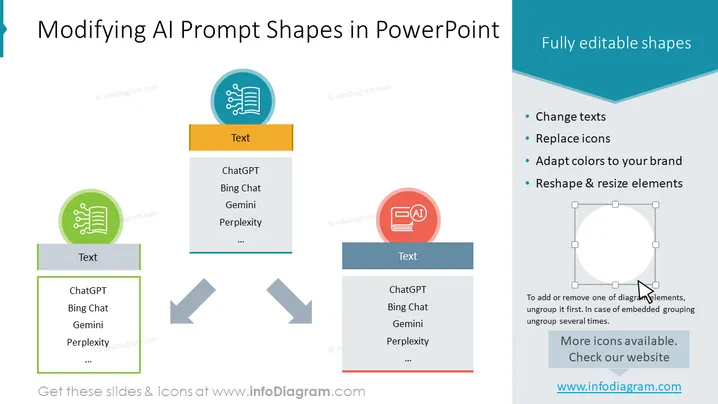
Modifying AI Prompt Shapes in PowerPoint
Slide Content
The slide is centered around the customization of AI prompt shapes within PowerPoint presentations. It highlights the flexibility of such designs with four distinct points: changeable text, replaceable icons, brand-adaptable colors, and resizable and reshapable elements. These points suggest that the AI prompt shapes are not static but can be adapted to fit different presentation contexts, and can evolve to include more items such as 'ChatGPT,' 'Bing Chat,' 'Gemini,' 'Perplexity,' and others, indicating a range of AI technologies or services that might be relevant to the slide's topic.
Graphical Look
- A large title is centered at the top in bold, dark text contrasting against a light background.
- Three circular shapes, each with an icon and a colored banner with text above it, are arranged horizontally across the slide.
- Each circle is a different color, indicating a different section or category.
- Icons inside the circles represent various aspects of AI prompts, such as text and AI processes.
- To the right, a block of text lists features of the AI prompt shapes, including fully editable shapes.
- An image of a selected graphic with resizing handles is shown, demonstrating how to adjust shapes' size.
- A note provides additional information on modifying shapes, mentioning the requirement to ungroup embedded groupings.
- A banner at the bottom right promotes more icons and directs viewers to the website for additional resources.
The slide has a clean and modern aesthetic, with minimalistic design elements that make it visually appealing and easy to interpret. The color-coded sections and graphical icons provide a clear representation of the slide's content.
Use Cases
-
For training presentations, to teach staff how to customize presentations to better fit corporate branding guidelines.
-
During marketing or product demonstrations, to show how AI-related services can be integrated or represented in digital materials.
-
In design workshops, where participants learn about creating visually engaging and customizable PowerPoint elements.
-
In sales pitches, to visually convey the flexibility and adaptability of a company's AI services or products to potential clients.
How to Edit
How to edit text & colors

How to expand / shorten diagram

How to Replace Icons in infoDiagram PPT


