
Reviews
Your graphics add a nice touch to my presentations and I recently used them for one of my all-hands meetings. Your toolbox adds professionalism to my slides. Instead of using standard clipart.
I needed a fresh look at some of my slides. I've tried to find a way to create a paintbrush effect, to underline, accentuate, add some color and the handwritten markers were just the things. Very easy to use, easy to size, change the color. It was an affordable, perfect solution and I'm happy to recommend it.
The crisp, clean look of the graphics, and the fact that it allowed me to easily edit and change the colors to match the template was my main reason for purchasing them.
Description
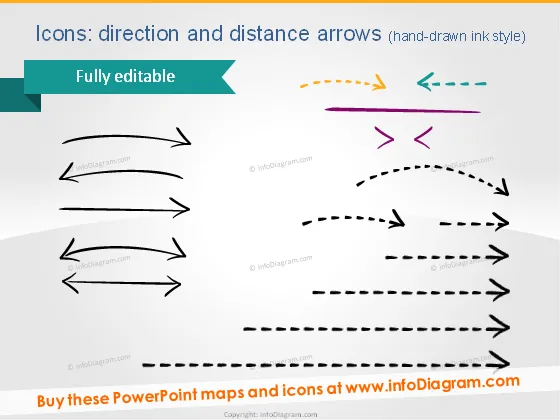
Icons: direction and distance arrows (hand-drawn ink style)
Slide Content
The slide displays a variety of arrow icons, each one stylized to represent different concepts of direction and distance in a hand-drawn ink style, suggesting a personal or creative touch. These arrows vary in straightness, curvature, and dashed line formations, with some arrows having two heads, and others indicating movement or directionality through their shape and orientation. Such arrow icons are useful to depict processes, pathways, or flow in a visual format that is easy to understand.
Graphical Look
- The slide background is white, providing a clean and neutral canvas for the icons.
- There is a large title in dark grey, near the top of the slide.
- Below the title, there is a smaller subtitle stating that the icons are "Fully editable" with a decorative teal ribbon graphic.
- A variety of arrow icons are spread across the slide in different orientations and styles.
- Color is used sparingly with some arrows in black, and a few in colors such as orange, purple, or teal.
- The arrows are designed with a hand-drawn effect, some with solid lines, others with dashed lines.
- There is no discernible pattern or grid to the layout of the arrows; they appear somewhat randomly placed adding to the hand-drawn feel.
The overall look of the slide is minimalistic and modern, with a touch of creativity due to the hand-drawn style of the icons. Despite the differing designs and orientations, the slide remains uncluttered and visually appealing.
Use Cases
- To illustrate steps in a process or workflow during a business presentation.
- To show directional movement or trends in data for marketing or sales strategies.
- To indicate the relationship between different elements or stages in project management.
- To create visually engaging educational materials that require demonstration of concepts like cause and effect or sequencing.
How to Edit
How to edit text & colors

How to expand / shorten diagram

How to Replace Icons in infoDiagram PPT


