

Your graphics add a nice touch to my presentations and I recently used them for one of my all-hands meetings. Your toolbox adds professionalism to my slides. Instead of using standard clipart.
Claude Jones, Director of Engineer, @Walmartlabs, USA

Your graphics add a nice touch to my presentations and I recently used them for one of my all-hands meetings. Your toolbox adds professionalism to my slides. Instead of using standard clipart.
Claude Jones, Director of Engineer, @Walmartlabs, USA
I needed a fresh look at some of my slides. I've tried to find a way to create a paintbrush effect, to underline, accentuate, add some color and the handwritten markers were just the things. Very easy to use, easy to size, change the color. It was an affordable, perfect solution and I'm happy to recommend it.
Anonymous, US
The crisp, clean look of the graphics, and the fact that it allowed me to easily edit and change the colors to match the template was my main reason for purchasing them.
Brandie Jenkins, E-learning Developer, USA
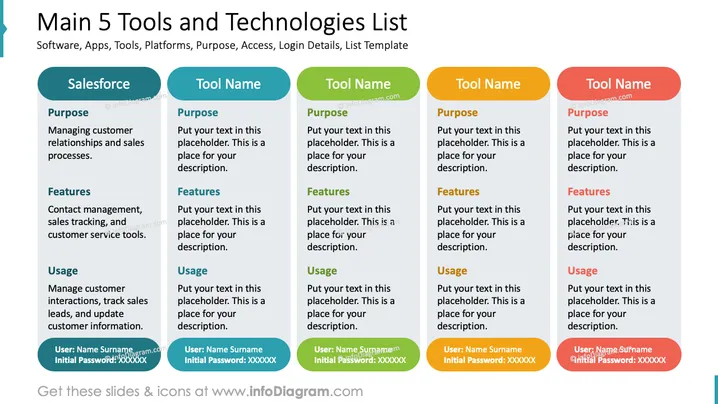
The slide is titled "Main 5 Tools and Technologies List" and it seems designed to compare and describe five different software tools, apps, or platforms. The first column is filled out for "Salesforce" and includes sections for Purpose, Features, Usage, and User login information. The purpose outlined is managing customer relationships and sales processes. The features listed are contact management, sales tracking, and customer service tools. For usage, it suggests managing customer interactions, tracking sales leads, and updating customer information. The other four columns have placeholder text for another tool name, purpose, features, and usage, as well as user login information.
The slide is streamlined and color-coded for easy comparison across different tools. The use of distinct colors for each tool's header creates a visually organized structure.



