
Reviews
Your graphics add a nice touch to my presentations and I recently used them for one of my all-hands meetings. Your toolbox adds professionalism to my slides. Instead of using standard clipart.
I needed a fresh look at some of my slides. I've tried to find a way to create a paintbrush effect, to underline, accentuate, add some color and the handwritten markers were just the things. Very easy to use, easy to size, change the color. It was an affordable, perfect solution and I'm happy to recommend it.
The crisp, clean look of the graphics, and the fact that it allowed me to easily edit and change the colors to match the template was my main reason for purchasing them.
Description
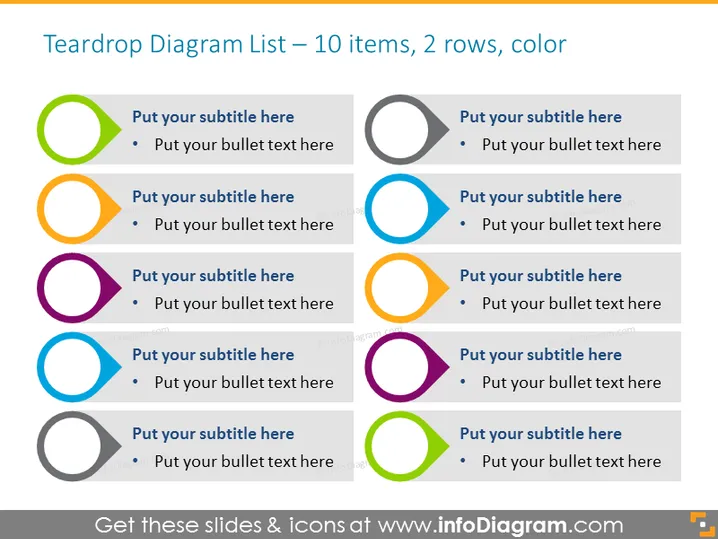
Teardrop Diagram List — 10 items, 2 rows, color
Slide Content
The PowerPoint slide presents a "Teardrop Diagram List" with capacity for 10 items, spread across 2 rows, each bearing distinct colors. The template illustrates a structured format intended to host compact information, with each teardrop-shaped bullet point having a subtitle and additional text space for details. This arrangement makes it suitable for concise articulation of multiple interconnected aspects, such as features, benefits, or steps in a process, providing ease of understanding and comparison.
Graphical Look
- The slide is divided into two equal horizontal sections, with five teardrop-shaped bullet points in each.
- Each teardrop bullet point consists of a colored ring with a hollow center on the left side and a smaller colored circle segment on the right side, suggesting a sense of flow or progression.
- The color palette is varied, with each pair of teardrop bullet points across the two sections using a different color to distinguish among them visually.
- The bullet points are paired side by side, with one on the left and its corresponding pair on the right, making for easy comparisons across the slide.
- Each teardrop shape is associated with a text box for a subtitle and another small bulleted list for detailed text.
The slide utilizes simple geometric shapes and a clean layout to present information in an organized manner. The varied color scheme aids in visually separating the content into digestible segments, enhancing clarity and focus.
Use Cases
- To compare and contrast products or features in a marketing or sales presentation.
- To outline steps in a business process or stages in project management.
- To display a list of benefits or considerations in a business strategy briefing.
- To visualize components of a business model or different segments of a market analysis.
How to Edit
How to edit text & colors

How to expand / shorten diagram

How to Replace Icons in infoDiagram PPT


