

Your graphics add a nice touch to my presentations and I recently used them for one of my all-hands meetings. Your toolbox adds professionalism to my slides. Instead of using standard clipart.
Claude Jones, Director of Engineer, @Walmartlabs, USA

Your graphics add a nice touch to my presentations and I recently used them for one of my all-hands meetings. Your toolbox adds professionalism to my slides. Instead of using standard clipart.
Claude Jones, Director of Engineer, @Walmartlabs, USA
I needed a fresh look at some of my slides. I've tried to find a way to create a paintbrush effect, to underline, accentuate, add some color and the handwritten markers were just the things. Very easy to use, easy to size, change the color. It was an affordable, perfect solution and I'm happy to recommend it.
Anonymous, US
The crisp, clean look of the graphics, and the fact that it allowed me to easily edit and change the colors to match the template was my main reason for purchasing them.
Brandie Jenkins, E-learning Developer, USA
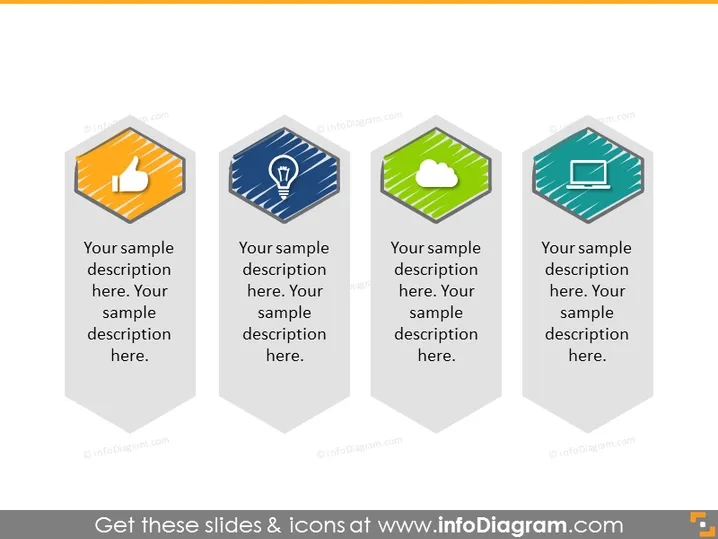
The PowerPoint slide presents a framework for outlining four key concepts or elements, each associated with an icon and a placeholder text for a description. These elements can represent steps in a process, critical components of a strategy, or important features of a product. The icons include a thumbs-up for approval or quality, a lightbulm for ideas or innovation, a cloud for connectivity or cloud computing, and a monitor for technology or digital solutions. Below each icon is space to add an explanatory text specific to the individual concept.
The slide has a clean and modern aesthetic, using flat icons and hexagonal shapes to create a visually engaging layout. The use of color and simple imagery provides a quick way to convey different ideas or steps within a strategy or process.



