
Reviews
Sus gráficos añaden un toque agradable a mis presentaciones y recientemente los usé para una de mis reuniones generales. Su conjunto de herramientas añade profesionalismo a mis diapositivas. En lugar de usar imágenes prediseñadas estándar.
Necesitaba un aspecto fresco para algunas de mis diapositivas. Había intentado encontrar una forma de crear un efecto de pincel, de subrayar, acentuar, añadir algo de color y los marcadores escritos a mano fueron justo lo que necesitaba. Muy fácil de usar, fácil de ajustar el tamaño, cambiar el color. Fue una solución asequible y perfecta, y estoy feliz de recomendarla.
El aspecto nítido y limpio de los gráficos, y el hecho de que me permitiera editar y cambiar fácilmente los colores para que coincidieran con la plantilla fue mi principal razón para comprarlos.
Description
Vertical Layers Tower – 4 Items Diagram Template
Slide Content
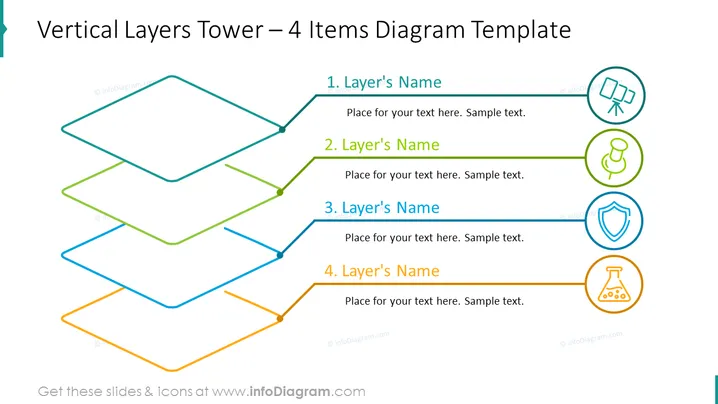
The PowerPoint slide titled "Vertical Layers Tower – 4 Items Diagram Template" presents a structural diagram designed to break down a concept into four distinct layers. Each layer is numbered and has a placeholder for a name and a description, indicating that the template can be customized for various uses. These layers could represent hierarchical levels in an organization, stages of a process, or any other information that can be logically divided into stratified segments.
Graphical Look
- The slide features a central diagram composed of four stacked horizontal layers or platforms, shown in a 3D isometric perspective.
- Each layer is connected to a circular icon with a distinct color and symbol on the right side.
- The top layer is teal and connected to a clipboard icon.
- The second layer is green, connected to a microphone icon.
- The third layer is blue, attached to a shield icon.
- The bottom layer is orange, linked to a beaker icon.
- The layers are offset with their respective connecting lines, creating a sense of depth.
- A bold slide title is positioned in the upper left corner.
- Text placeholders are left-aligned with the respective layers they correspond to.
- Colors alternate between layers for visual distinction and easier readability.
The slide boasts a clean and modern design, with a clear visual hierarchy that guides the viewer through the content. The use of colors and icons adds a visual appeal and can help the audience quickly associate the icons with the concepts presented in each layer.
Use Cases
- Illustrating the structure of an organizational hierarchy, with each layer representing a different level of authority or responsibility.
- Outlining the stages of a project or workflow, detailing the progression from one stage to the next.
- Presenting a breakdown of a complex concept or strategy into manageable parts, promoting easier understanding.
- Explaining the layers of a product or system, with each layer describing its components or functions.
How to Edit
How to edit text & colors

How to expand / shorten diagram

How to Replace Icons in infoDiagram PPT


