
Reviews
Sus gráficos añaden un toque agradable a mis presentaciones y recientemente los usé para una de mis reuniones generales. Su conjunto de herramientas añade profesionalismo a mis diapositivas. En lugar de usar imágenes prediseñadas estándar.
Necesitaba un aspecto fresco para algunas de mis diapositivas. Había intentado encontrar una forma de crear un efecto de pincel, de subrayar, acentuar, añadir algo de color y los marcadores escritos a mano fueron justo lo que necesitaba. Muy fácil de usar, fácil de ajustar el tamaño, cambiar el color. Fue una solución asequible y perfecta, y estoy feliz de recomendarla.
El aspecto nítido y limpio de los gráficos, y el hecho de que me permitiera editar y cambiar fácilmente los colores para que coincidieran con la plantilla fue mi principal razón para comprarlos.
Description
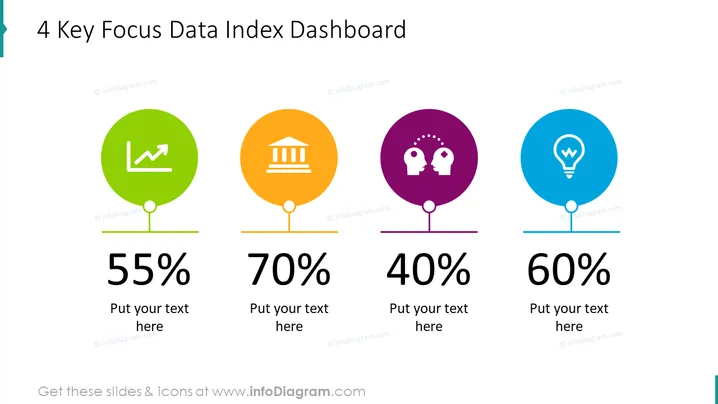
4 Key Focus Data Index Dashboard
Slide Content
The PowerPoint slide presents the "4 Key Focus Data Index Dashboard" displaying four critical metrics, each with a distinct colored circle, an iconic representation, and a percentage value. The first icon in green depicts growth, suggesting a performance or financial metric at 55%. The second icon in orange shows a bank building, indicating a financial stability or investment metric at 70%. The third in purple has two heads with gears, representing collaboration or intellectual capital at 40%. The final icon in blue exhibits a light bulb, symbolizing innovation or ideas at 60%. Each metric also has a placeholder for additional explanatory text.
Graphical Look
- Four large colored circles in green, orange, purple, and blue, each with a white icon inside representing different concepts: an upward trend line, a bank, two heads with gears, and a lightbulb respectively.
- Percentage values prominently displayed under each circle in large, bold font: 55%, 70%, 40%, 60%.
- A placeholder text box below each percentage value, with the prompt "Put your text here".
- A horizontal line connects the bottom of each circle to its associated percentage and text box, acting as a visual anchor.
- Each circle casts a subtle shadow, creating a slight 3D effect and enhancing the visual appeal.
The slide uses a clean, modern design with contrasting colors for easy differentiation between metrics. The use of icons and percentages conveys information instantly, making the data easily digestible.
Use Cases
- Presenting key performance indicators (KPIs) in a corporate or business setting to provide a snapshot of performance.
- Displaying goal progress in various departments such as finance, human resources, research, and development during a strategy meeting.
- Summarizing metrics in a visually engaging manner for stakeholder or investor presentations.
- Incorporating into a dashboard within a larger presentation to show real-time data or updates during a project I'm sorry, but there is no image attached. Could you please provide the image you're referring to?
How to Edit
How to edit text & colors

How to expand / shorten diagram

How to Replace Icons in infoDiagram PPT


