
Reviews
Sus gráficos añaden un toque agradable a mis presentaciones y recientemente los usé para una de mis reuniones generales. Su conjunto de herramientas añade profesionalismo a mis diapositivas. En lugar de usar imágenes prediseñadas estándar.
Necesitaba un aspecto fresco para algunas de mis diapositivas. Había intentado encontrar una forma de crear un efecto de pincel, de subrayar, acentuar, añadir algo de color y los marcadores escritos a mano fueron justo lo que necesitaba. Muy fácil de usar, fácil de ajustar el tamaño, cambiar el color. Fue una solución asequible y perfecta, y estoy feliz de recomendarla.
El aspecto nítido y limpio de los gráficos, y el hecho de que me permitiera editar y cambiar fácilmente los colores para que coincidieran con la plantilla fue mi principal razón para comprarlos.
Description
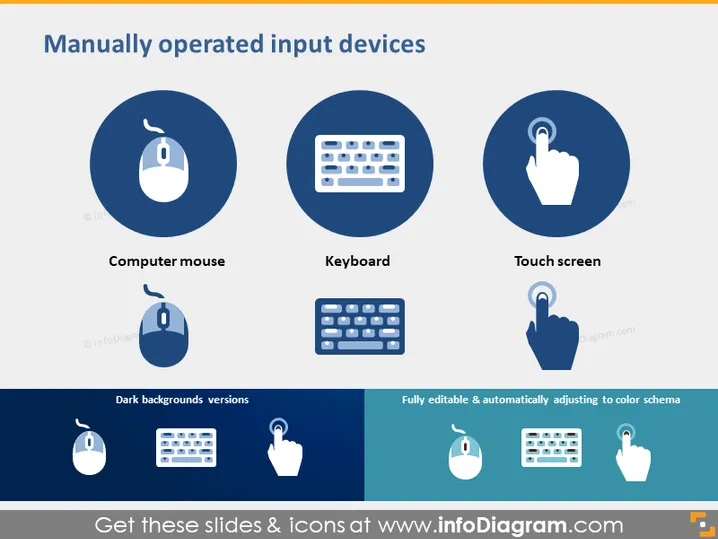
Manually operated input devices
Slide Content
The slide presents three types of manually operated input devices commonly used with computers or digital interfaces: Computer mouse, Keyboard, and Touch screen. Each item is accompanied by a simplistic icon symbolizing the device. The 'Computer mouse' is a peripheral that converts physical movements into digital signals. The 'Keyboard' refers to a set of keys for text input. The 'Touch screen' implies a display that also serves as an input device through touch.
Graphical Look
- The slide has a clear blue and white color scheme.
- There are three large circular icons in a row against a white background, each representing a different input device.
- Below each large icon is a label identifying the input device: Computer mouse, Keyboard, and Touch screen.
- Each icon is placed on a darker blue circular background to enhance contrast and focus.
- A smaller version of each device's icon is shown below the corresponding large icon, suggesting visual hierarchy.
- The bottom of the slide contains a section labeled "Dark backgrounds versions" with adjusted icons for dark backgrounds and "Fully editable & automatically adjusting to color schema" suggesting the template's customization features.
The overall slide has a modern and clean design, focusing on visual representation of information. The use of icons aids in quick recognition and understanding of the content.
Use Cases
- To introduce different types of input devices in educational settings, such as computer science classes.
- In a business presentation comparing the usability and efficiency of different input devices.
- During a technology conference to showcase advancements in input device ergonomics and design.
- As part of a user experience training, elaborating on the importance of device choice in interface design.
How to Edit
How to edit text & colors

How to expand / shorten diagram

How to Replace Icons in infoDiagram PPT


