

Your graphics add a nice touch to my presentations and I recently used them for one of my all-hands meetings. Your toolbox adds professionalism to my slides. Instead of using standard clipart.
Claude Jones, Director of Engineer, @Walmartlabs, USA

Your graphics add a nice touch to my presentations and I recently used them for one of my all-hands meetings. Your toolbox adds professionalism to my slides. Instead of using standard clipart.
Claude Jones, Director of Engineer, @Walmartlabs, USA
I needed a fresh look at some of my slides. I've tried to find a way to create a paintbrush effect, to underline, accentuate, add some color and the handwritten markers were just the things. Very easy to use, easy to size, change the color. It was an affordable, perfect solution and I'm happy to recommend it.
Anonymous, US
The crisp, clean look of the graphics, and the fact that it allowed me to easily edit and change the colors to match the template was my main reason for purchasing them.
Brandie Jenkins, E-learning Developer, USA
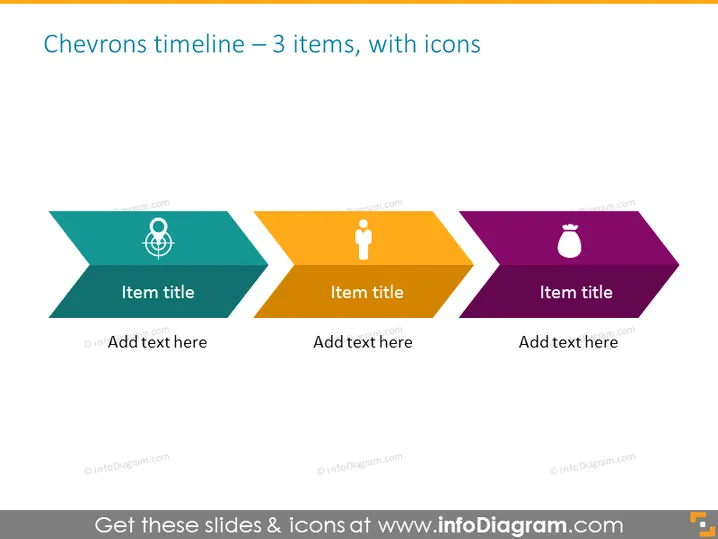
The slide depicts a "Chevrons timeline" which consists of three stages, each symbolized by a chevron shape containing an icon, a place for an item title, and an area to add a description. The icons suggest that each chevron represents a different phase or concept in a sequence. The left chevron contains an icon suggesting a global or international aspect, the middle chevron contains a figure which could represent a person or human resource, and the right chevron features a timer or clock symbol, indicating a time-bound element or deadline-focused stage.
The slide is structured and clean, with a straightforward color scheme that visually separates the three elements. The use of icons provides quick visual cues about the nature of each step.



